Help guide

Everything in HMCG Pager, step by step.

From the first setup to writing up a job. Each section shows the screen you'll see and what to tap. The same help is in the app under Settings › Help & how-to.

  1. Getting set up
  2. Ready for pages
  3. Your availability
  4. When a page arrives
  5. The live job
  6. Weather & wind
  7. Response board
  8. Tides & tidal flow
  9. Hands-free summary
  10. Jobs & write-ups
  11. Alarm tones
  12. what3words
  13. Forwarding & WhatsApp
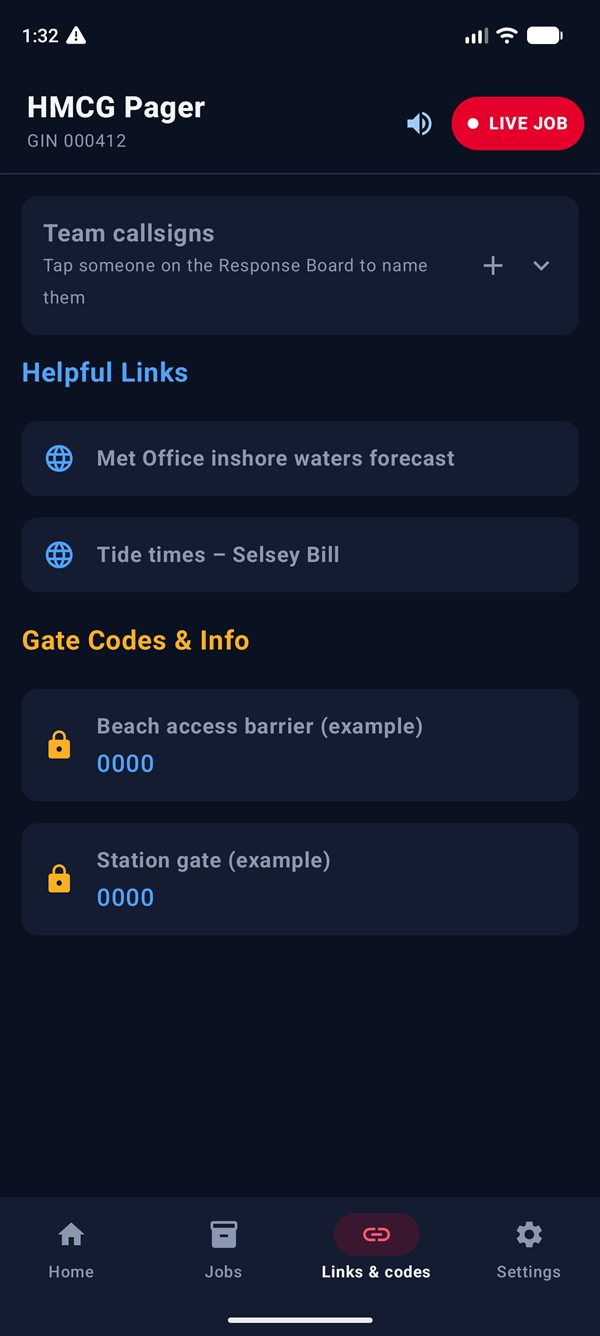
  14. Links & codes
  15. Settings at a glance
  16. A&T codes
  17. If something isn't right

1Getting set up

The first time you open the app, setup goes through one thing at a time. Each screen says why it's needed. Tap Allow, follow Android's screen, and come back: the step ticks itself off and moves on.

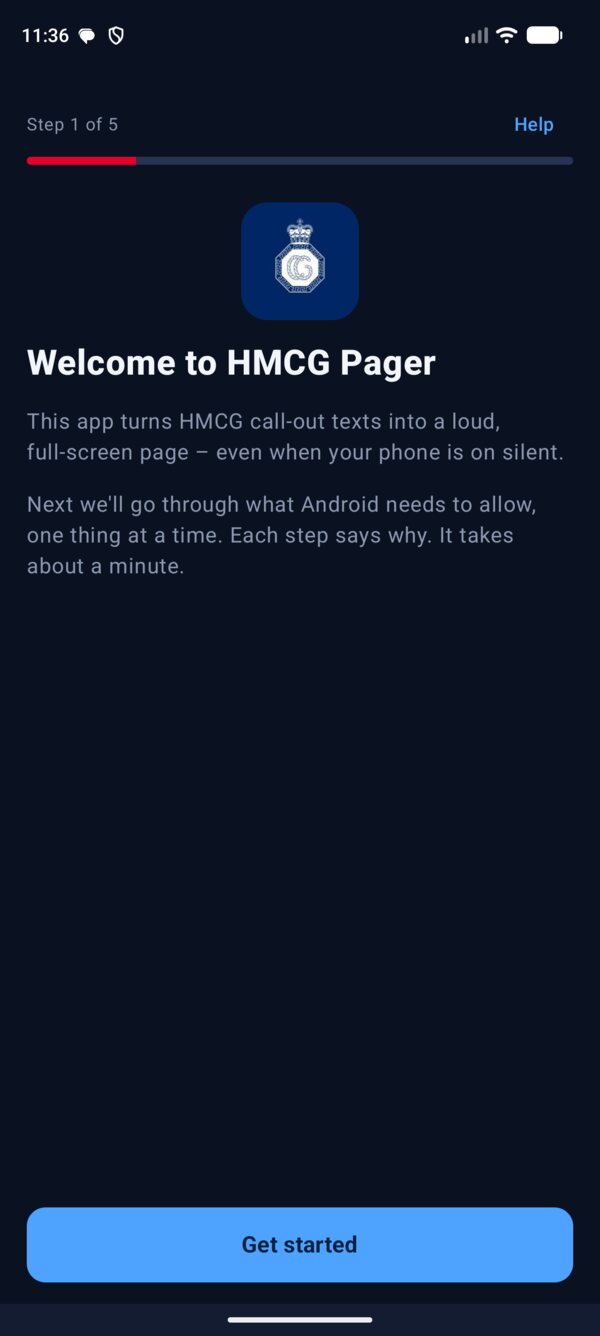
Setup step 1: Welcome to HMCG Pager with a Get started button.
1. Welcome
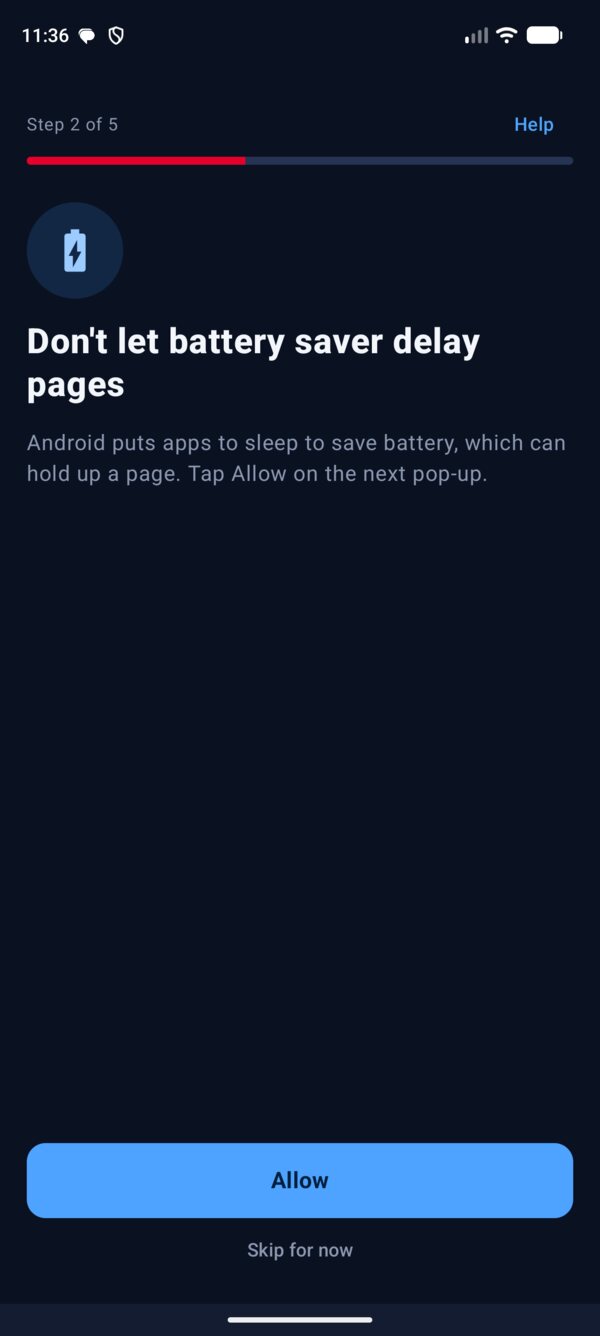
A permission step: Don't let battery saver delay pages, with Allow and Skip for now.
2. One permission per screen
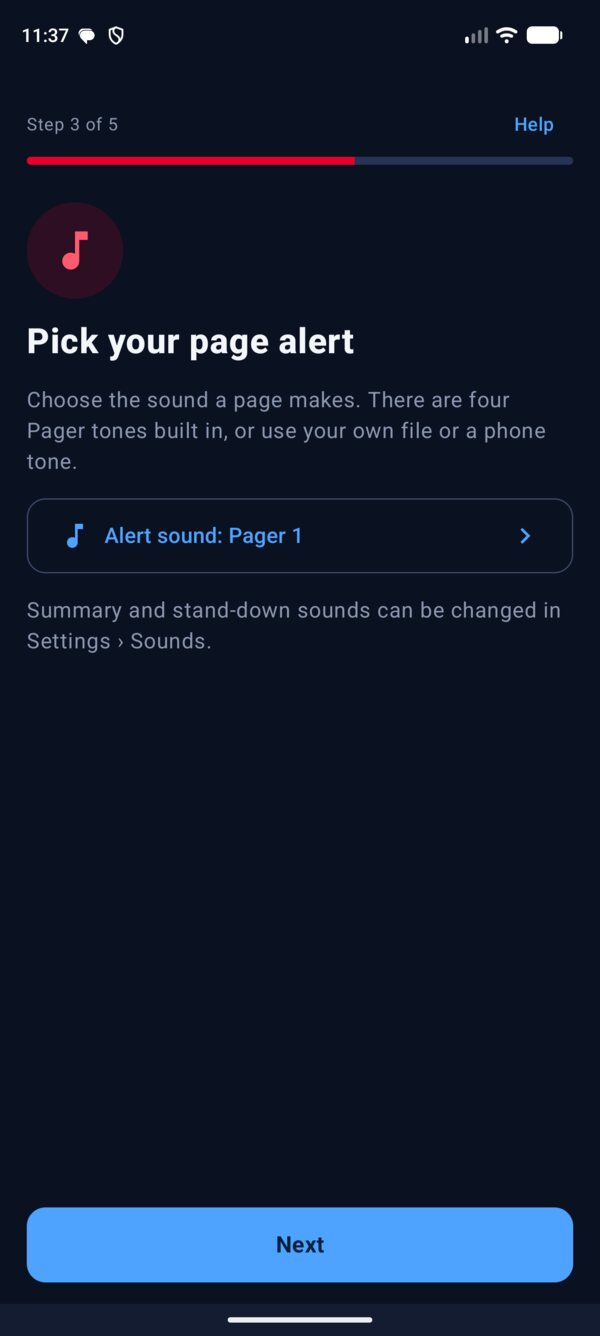
Pick your page alert step, with Alert sound: Pager 1.
3. Pick your alert tone
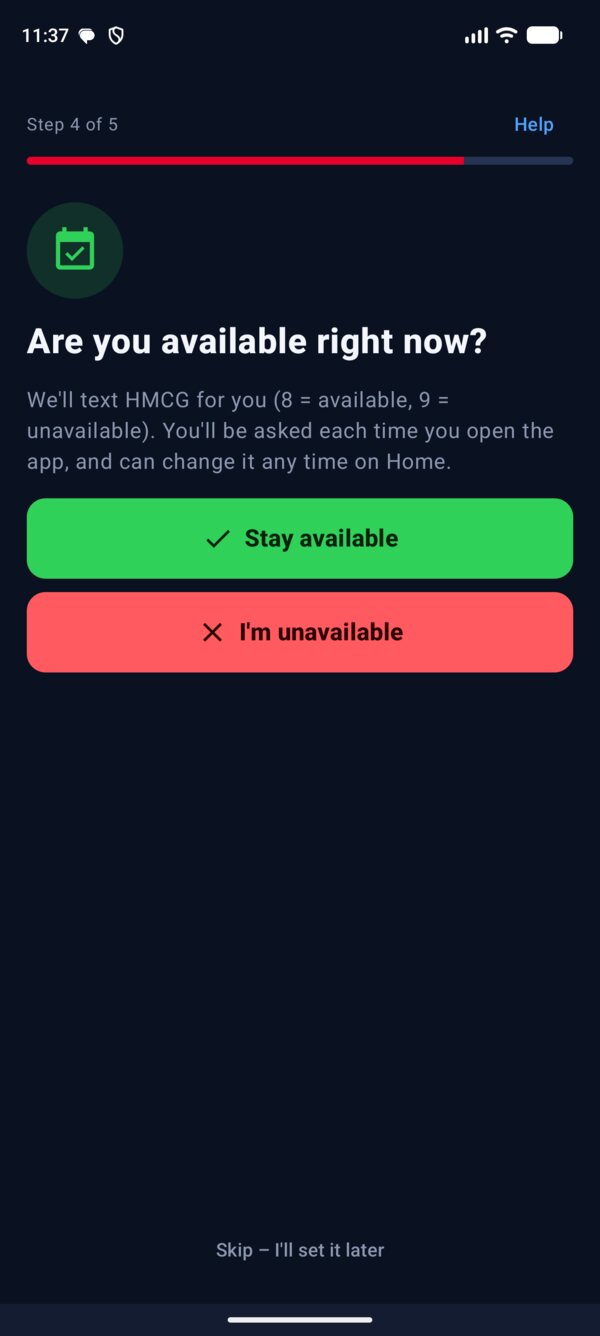
Are you available right now? step with Stay available and I'm unavailable.
4. Say if you're available
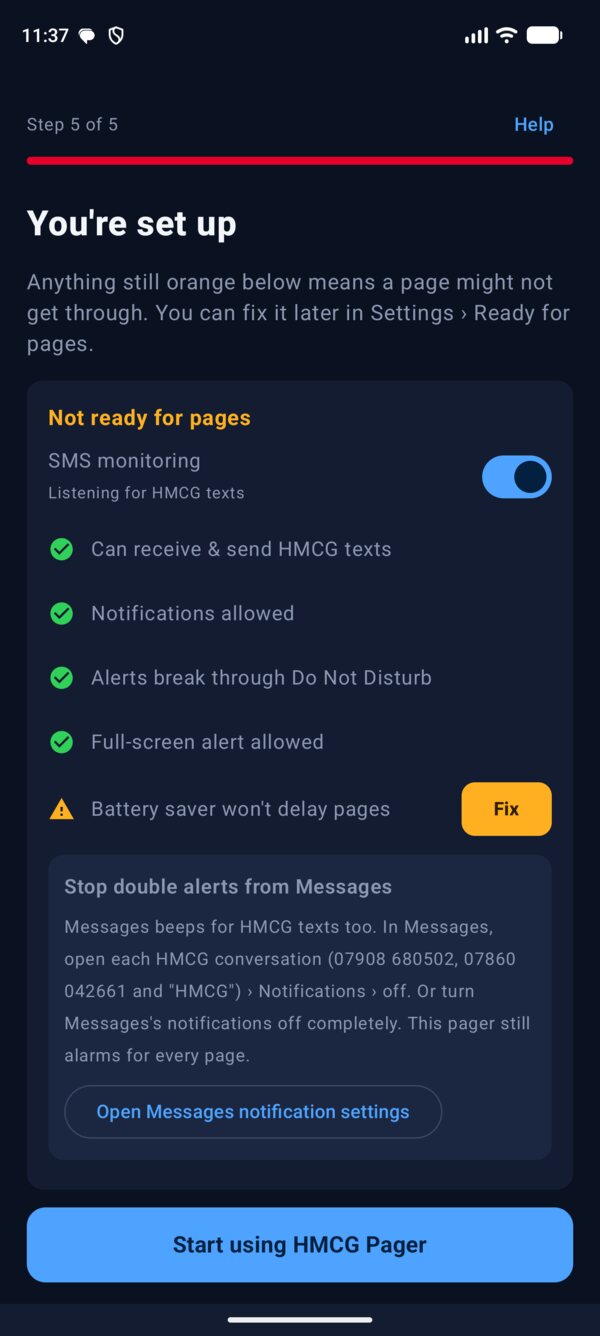
You're set up: the Ready for pages checklist with one item still to fix.
5. Check it's all green

What setup asks for

  1. SMS: pages arrive as texts, and your responses and availability go back as texts. The app only acts on texts from HMCG numbers.
  2. Notifications: so the alert can show and keep ringing.
  3. Do Not Disturb: on the next screen find HMCG Pager and switch it on, so a page sounds at night or on silent.
  4. Full-screen alerts: switch HMCG Pager on, so the page fills the screen even when locked.
  5. Battery: tap Allow, so Android doesn't put the app to sleep and delay a page.
  6. Your alert tone: pick a Pager tone, or come back to it later.
  7. Availability: texts HMCG 8 or 9 for you. You can skip this.

You can tap Skip for now on any step. Settings › Run setup again goes through the whole thing again.
"Restricted setting" or no SMS pop-up

Android 13 and later blocks SMS for apps not installed from the Play Store. Setup notices and shows the way through:

  1. Tap Open App info.
  2. Tap ⋮ in the top right, then Allow restricted settings, and confirm.
  3. Tap Permissions › SMS › Allow.
  4. Come back to the app. The step ticks itself off.
Back to contents

2Ready for pages

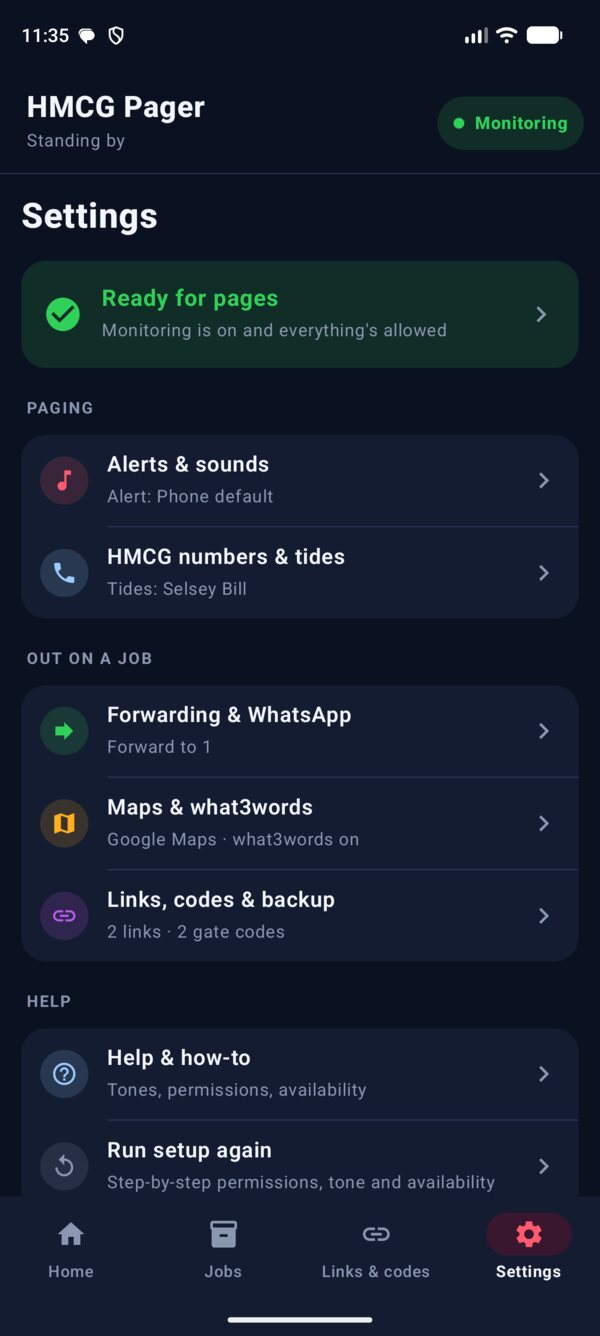
The top of Settings tells you if a page will get through.

  • Green: Ready for pages. Monitoring is on and everything's allowed.
  • Orange: Not ready. Tap it to see the checklist. Anything orange has a Fix button that opens the right Android screen.
  • The SMS monitoring switch pauses the app. When it's off, pages are ignored, so leave it on.
  • Stop double alerts: your normal Messages app beeps for HMCG texts as well. Tap Open Messages notification settings and turn notifications off for the HMCG conversations. The pager still alarms for every page.
Settings menu with the green Ready for pages banner at the top.
Green means ready
Back to contents

3Your availability

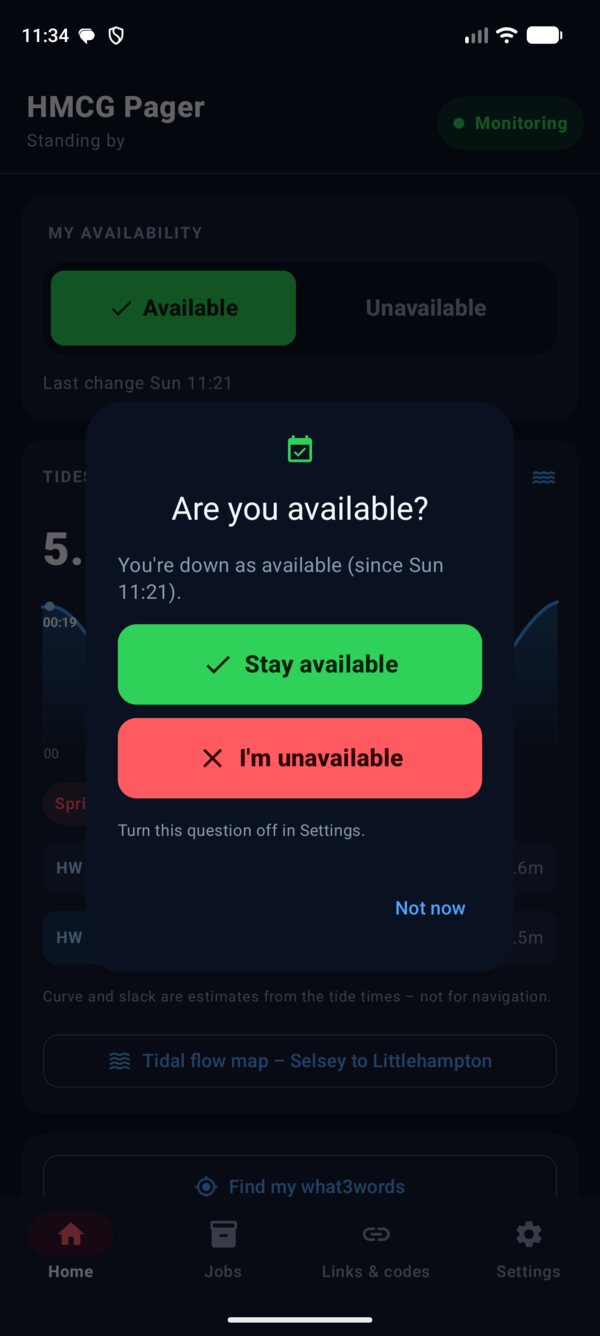
Each time you open the app it asks Are you available? and shows what you're down as.

  1. Tap I'm available or I'm unavailable. The app texts HMCG 8 or 9 for you. Normal text charges apply.
  2. Choosing the one you're already on (for example Stay available) just closes it, so no text is sent.
  3. Not now closes it without changing anything.
  • You can change it any time with the switch at the top of Home.
  • It doesn't ask while a job is live.
  • If you reply Not attending (5) to a page, A&T sets you unavailable. Home shows that, so you remember to go available again.
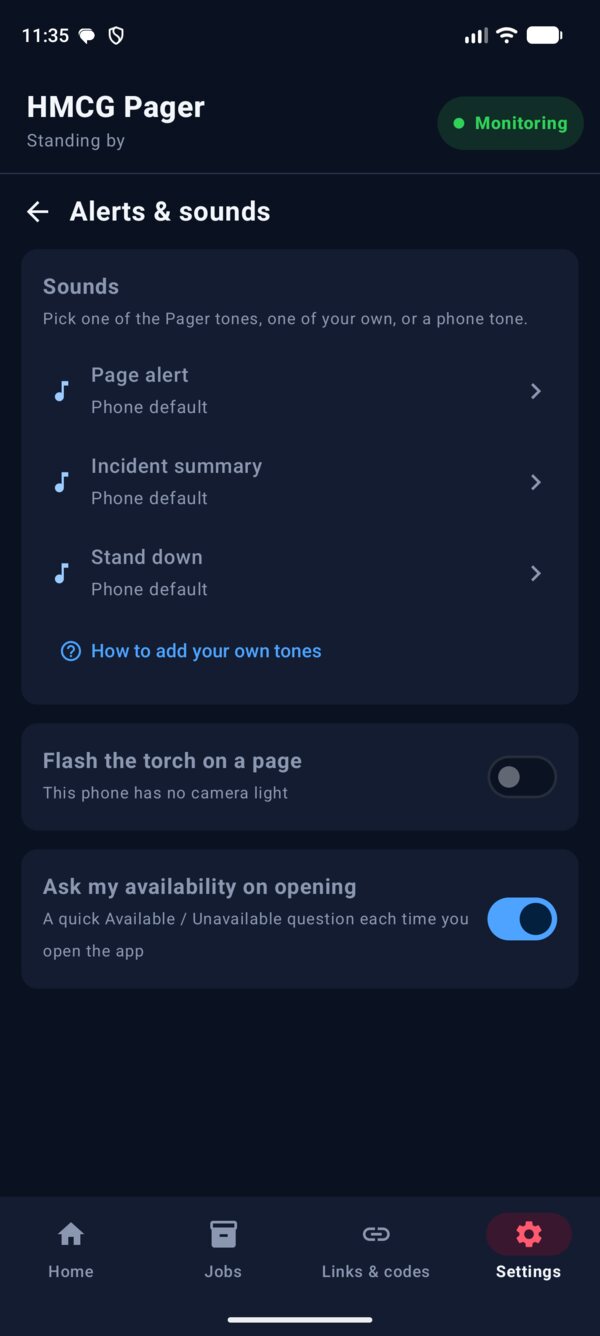
  • To stop the question: Settings › Alerts & sounds › Ask my availability on opening.
Are you available? question with Stay available, I'm unavailable and Not now.
Asked when you open the app
Back to contents

4When a page arrives

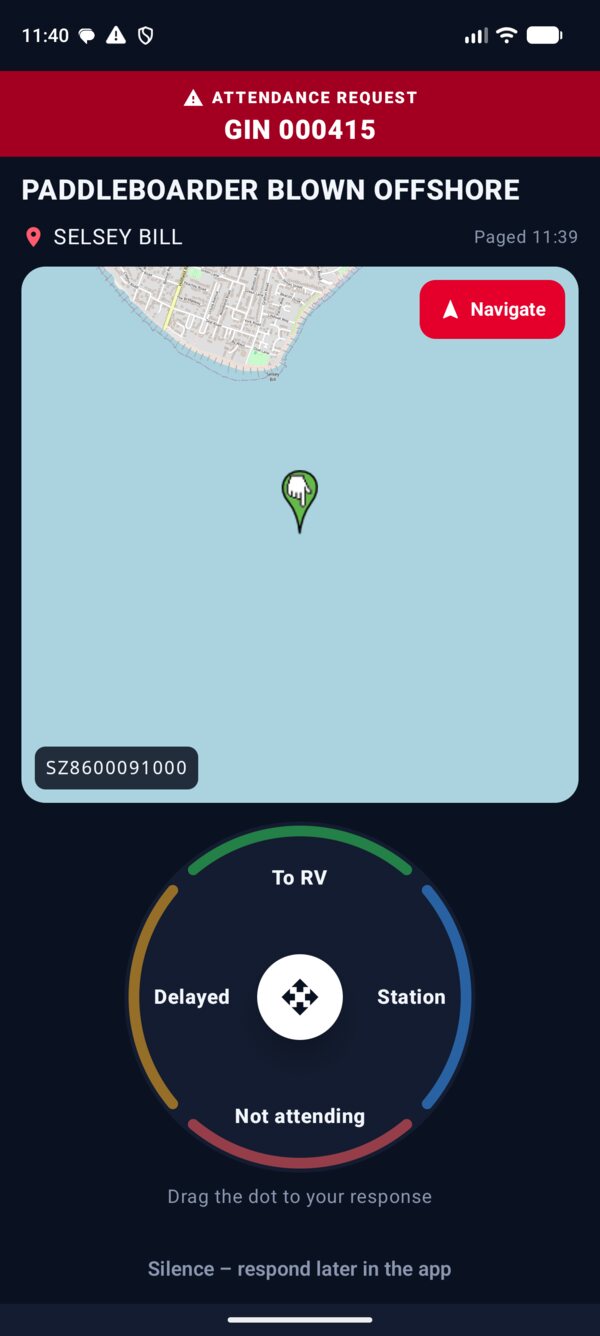
The alarm sounds through Do Not Disturb and the page fills the screen, even on the lock screen, with the RV on a map.

  1. Read the GIN, what's happened and where. Navigate opens Google Maps or Waze to the RV.
  2. Drag the white dot to your answer: To RV, Station, Delayed or Not attending. It has to reach the edge to count. Let go early and nothing is sent.
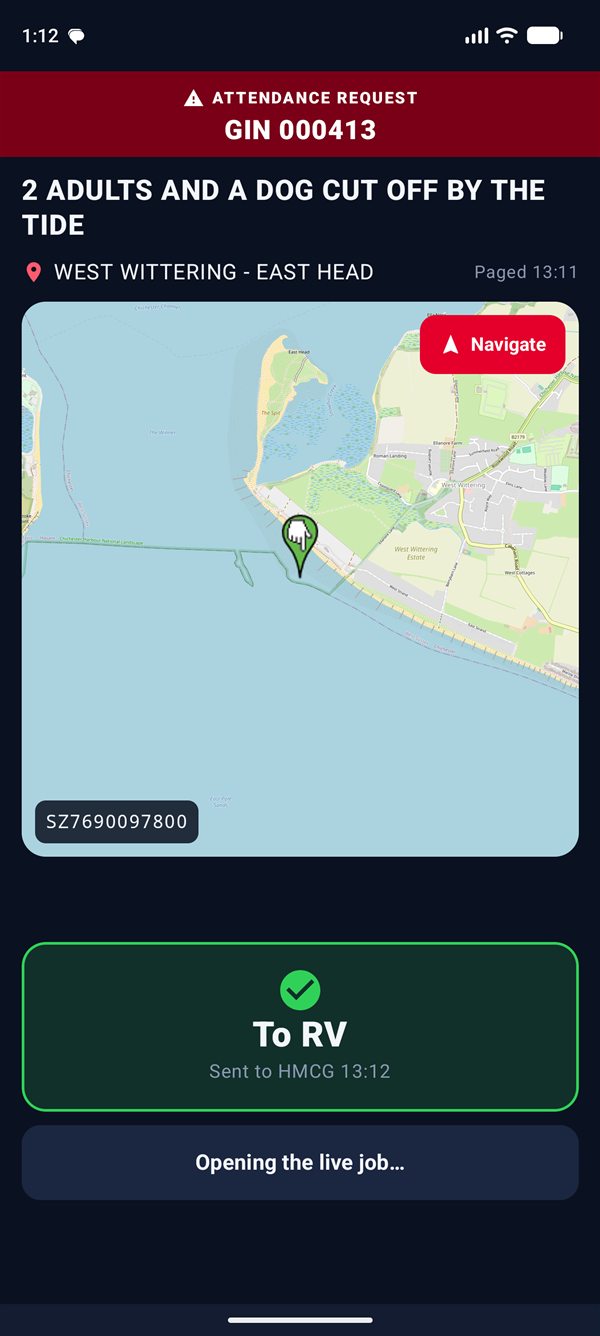
  3. The app texts the number for your answer back to the number that paged you, and opens the live job.
  4. Not ready to answer? Tap Silence – respond later in the app. The alarm stops; open the app to respond from the live job.
  • The alarm keeps going until you answer or silence it.
  • The torch can flash with the alarm: Settings › Alerts & sounds.
  • Pages can be texted on to a second phone: see Forwarding.
Full-screen attendance request with map, Navigate and the drag-to-respond dial.
Drag the dot to respond
Confirmation that the response was sent to HMCG.
Sent
Back to contents

5The live job

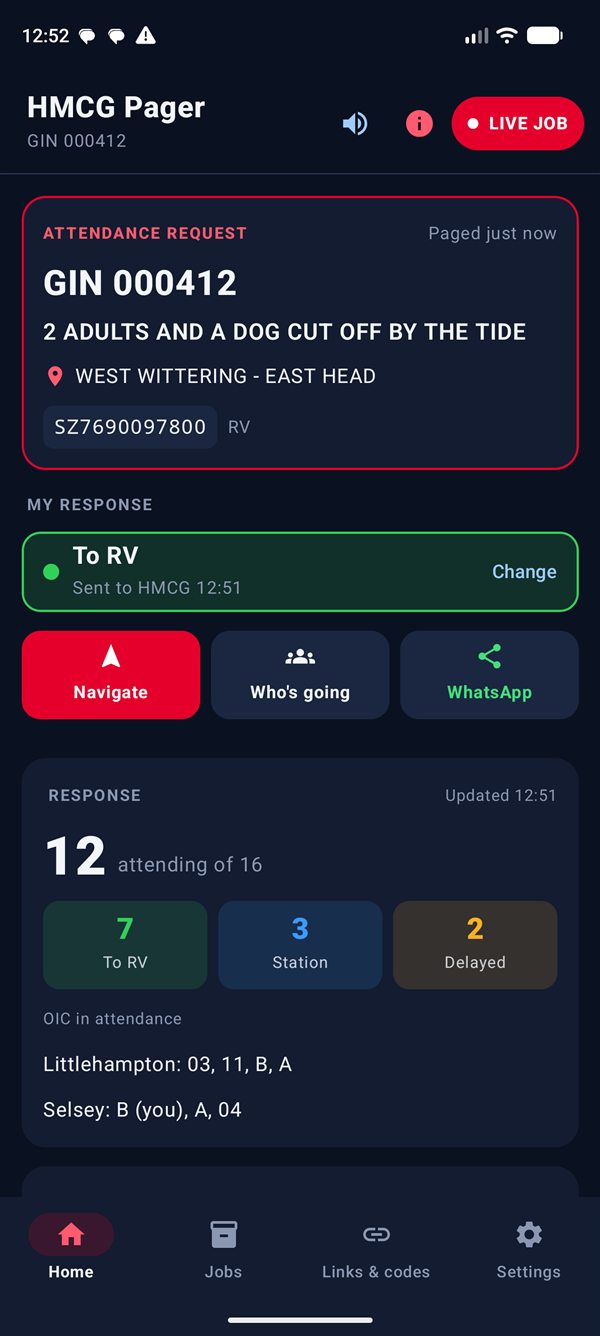
While a job is on, Home becomes the live job. Scroll down for more. Only the newest job is live: if a new page arrives, any older job still open is closed and kept in Jobs.

From the top

  1. The page: GIN, what's happened, where, and the RV grid reference.
  2. My response: what you sent and when. Tap Change to send a different one.
  3. Navigate, Who's going (the response board) and WhatsApp.
  4. Response: how many are attending, To RV, Station and Delayed, and which OIC-qualified officers are coming. It refreshes every two minutes.
  5. Incident summary: the team tasking and the other agencies attending.
  6. Weather & wind and the Tidal flow & drift button.
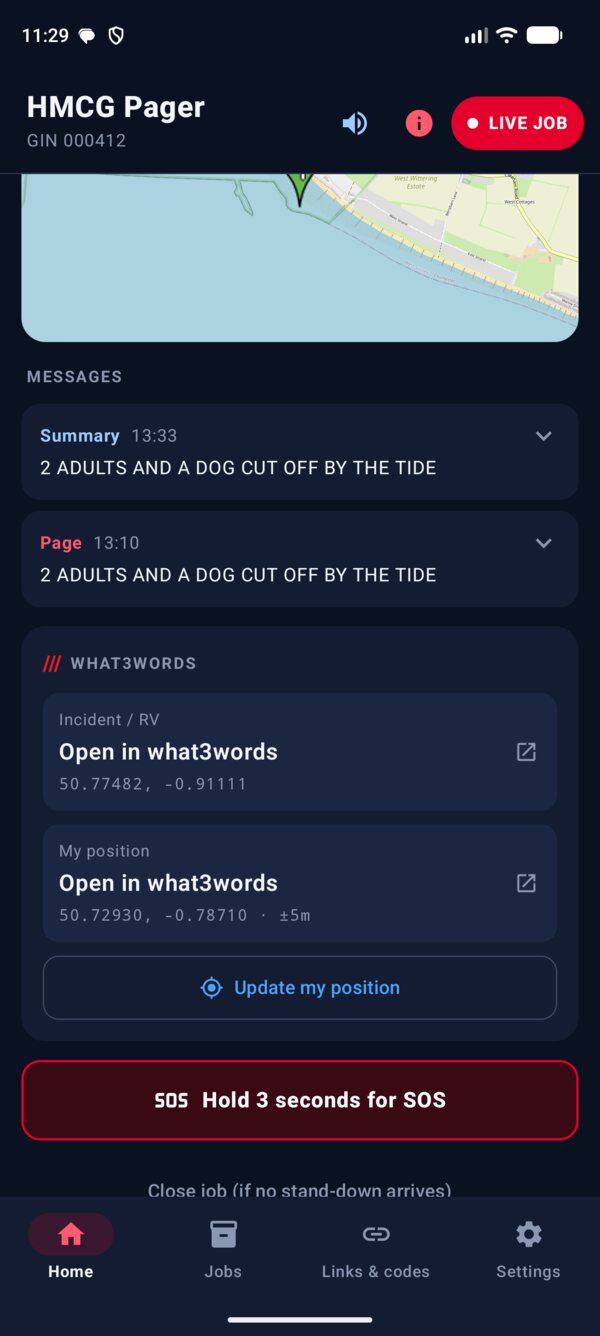
  7. The map, and every text received for the job.
  8. what3words for the incident and your own position, if it's turned on.
  9. SOS: hold for three seconds. It texts 0 to A&T and alerts the Network Commander.
  10. Close job: only if a stand-down never arrives.

The speaker button at the top reads the job out loud. The i button opens the response board.

Top of the live job: the page, my response To RV, and Navigate, Who's going and WhatsApp buttons.
Top of the job
Bottom of the live job: map, messages, what3words and the SOS button.
Bottom of the job
Back to contents

6Weather & wind

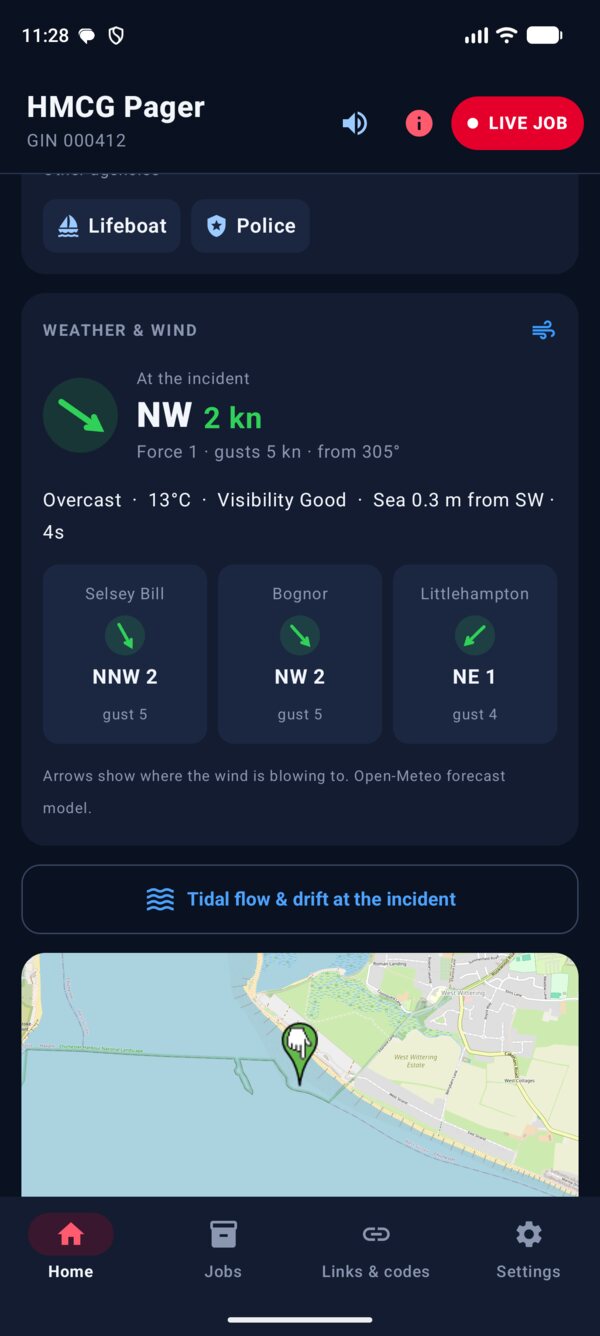
On a live job, the Weather & wind panel shows conditions at the incident and along the patch.

  • Big type: where the wind is coming from (for example NW) and its speed in knots.
  • The arrow shows where the wind is blowing to, which is the way something light would be pushed.
  • Beaufort force, gusts and the exact bearing underneath, then the weather, temperature, visibility and sea state (wave height, direction and period).
  • Selsey Bill, Bognor and Littlehampton side by side.
  • Colours step up with the wind: green up to force 3, blue force 4–5, amber force 6–7, red for a gale.
  • It refreshes every ten minutes. Weather comes from the Open-Meteo forecast model.
Weather and wind panel with the wind at the incident and three area tiles.
Wind at the scene
Back to contents

7Response board

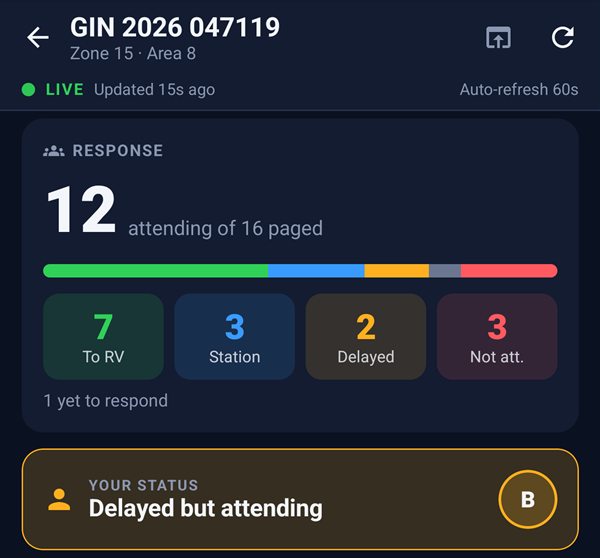
Tap Who's going on a live job. The A&T incident summary page opens as a phone screen and refreshes every minute.

  • The total attending, a bar of everyone's response, and your status at the top.
  • The RV with its grid reference and coordinates. Navigate, or Share the RV as text.
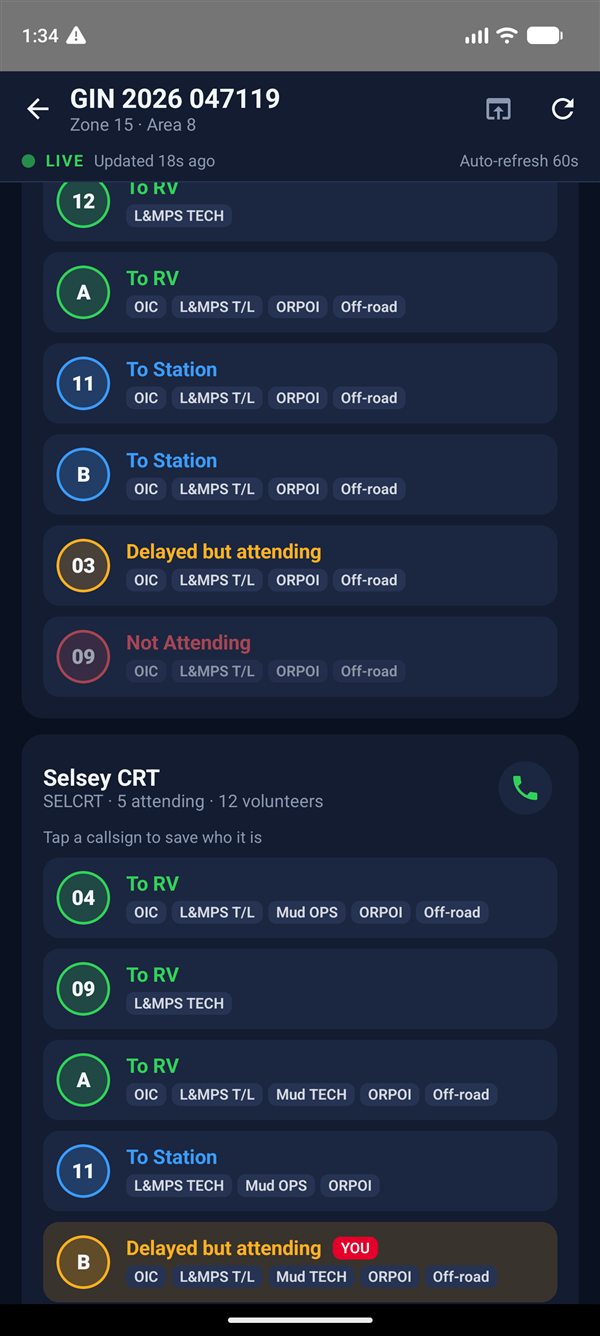
  • A card per team with the vehicle phone, and everyone by callsign, coloured by response, with their skills.
  • Tap a callsign to save a name. "04" becomes a name on this and every future job, and in the spoken summary.
  • what3words for the RV and your own position is at the bottom, if it's turned on.
Response board summary with totals and your status.
Who's attending
Team cards listing each callsign and response.
Every team and callsign
Back to contents

8Tides & tidal flow

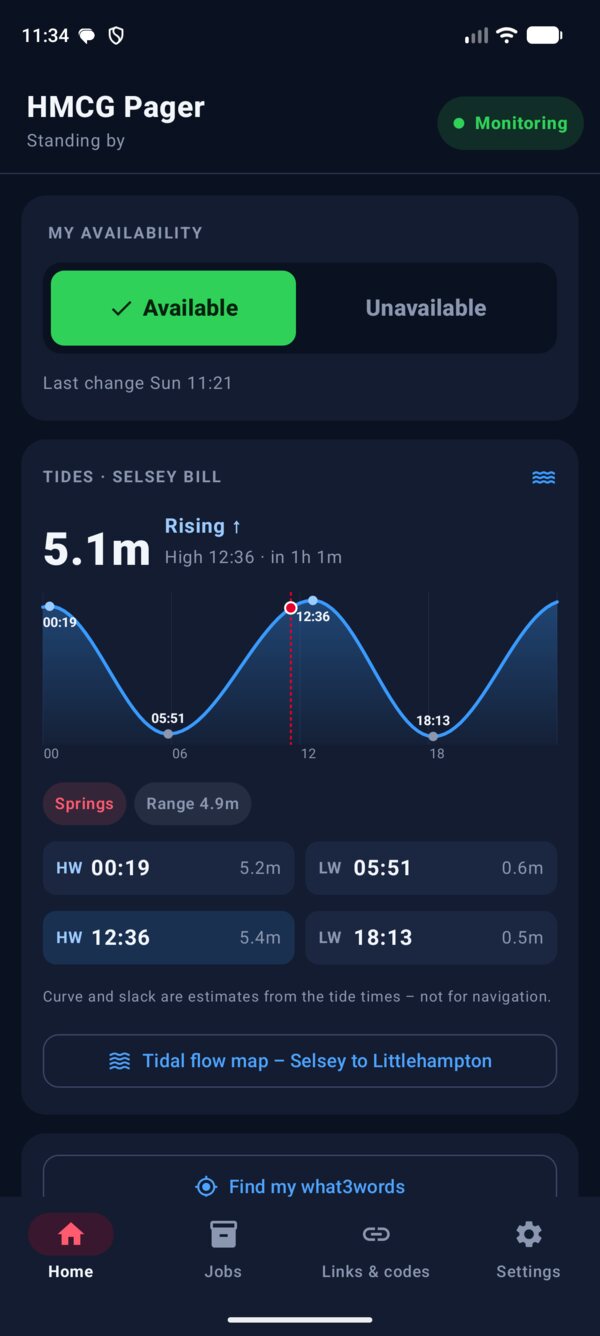
The tide curve on Home

  • Today's curve for your station, with a red line for now.
  • The height now, Rising ↑ or Falling ↓, and the next high or low water with how long until it.
  • Springs or Neaps (or easing / building between them), worked out from the moon, and today's range.
  • Slack water shows for about half an hour either side of high and low water. Streams off the Bill can turn earlier or later, so treat it as an estimate.
  • Change the station in Settings › HMCG numbers & tides.
Home with the tide curve, springs and the four tide times.
Tide curve on Home

The tidal flow map

Open it with Tidal flow map under the tides on Home, or Tidal flow & drift at the incident on a live job.

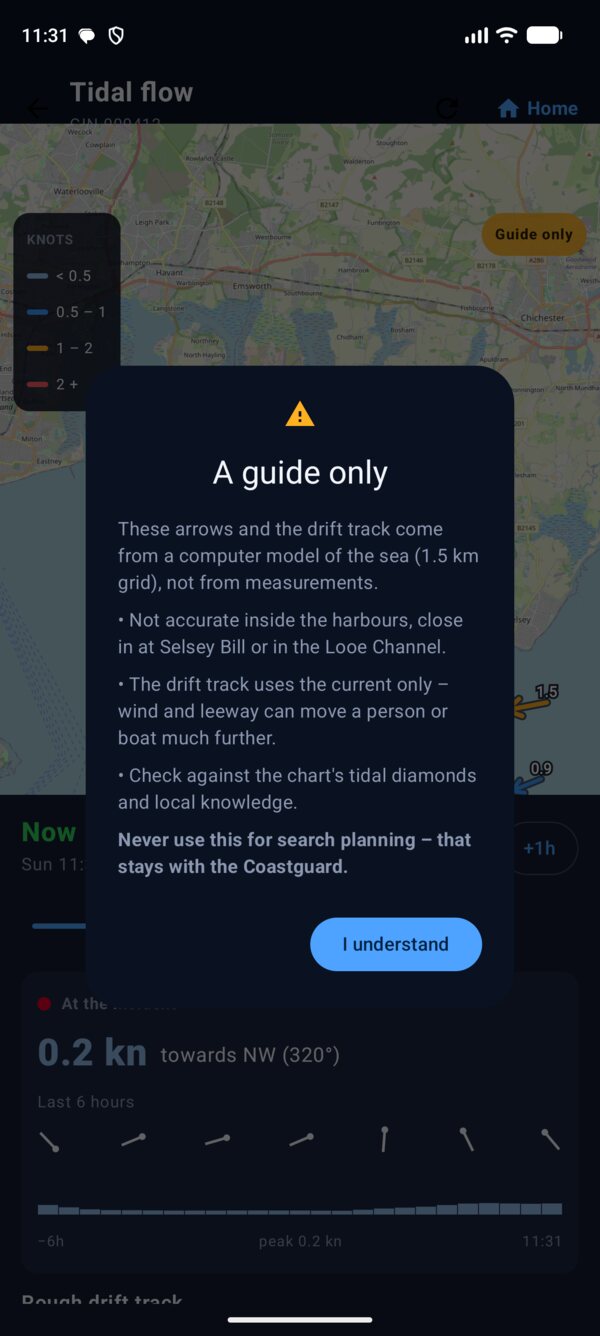
  1. Read the A guide only message and tap I understand. It shows every time.
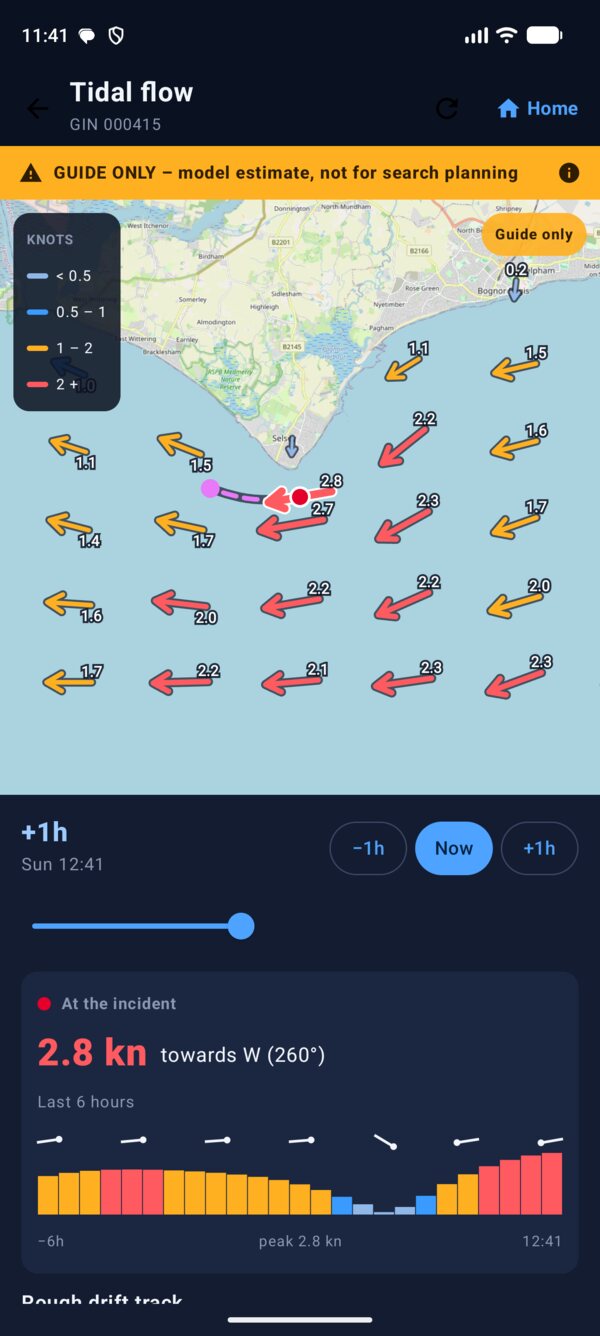
  2. Arrows point where the water is going. Faster water means longer, thicker, warmer arrows: pale blue under 0.5 knots, blue 0.5–1, amber 1–2, red over 2. Zoom in to read the knots on each one.
  3. Drag the slider, or tap −1h / Now / +1h, to look up to 6 hours back or 12 hours ahead.
  4. Tap the sea anywhere to read the flow at that spot.
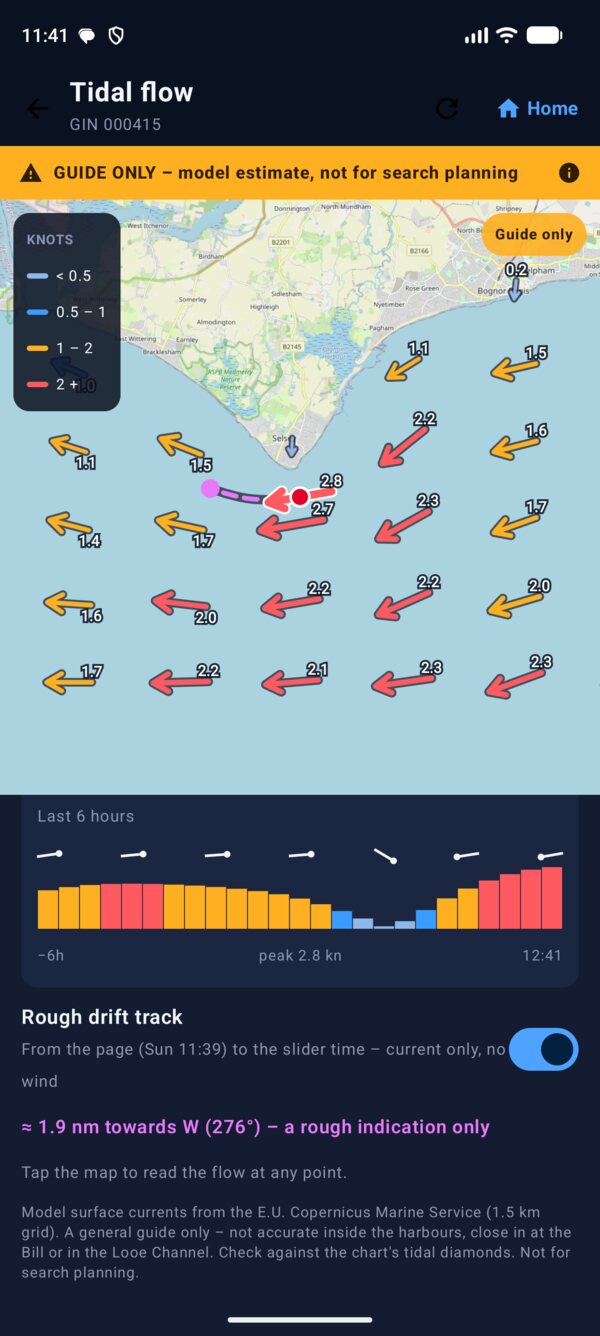
  5. On a live job you also get the flow at the incident, a chart of the last 6 hours, and a rough drift track: a dashed purple line from the page time to the slider time, with a dot each hour and a distance such as "≈ 1.9 nm towards W".
  6. Home (top right) goes straight back to the app's home screen. The back arrow returns to the job.
A guide only The flow comes from the E.U. Copernicus Marine Service sea model on a 1.5 km grid, not from measurements. It isn't accurate inside the harbours, close in at Selsey Bill or in the Looe Channel. The drift track uses the current only: wind and leeway can move a person or boat much further. Check against the chart's tidal diamonds and local knowledge. Never use it for search planning.

The model data (about 3 MB) is downloaded once and kept on the phone, so it still works with poor signal. Tap the refresh button to update it.

The A guide only pop-up on the tidal flow map.
Shown every time
Tidal flow map with speed-coloured arrows and the incident's drift track.
Arrows and drift
The drift result: about 1.9 nautical miles towards west, a rough indication only.
The drift result
Back to contents

9Hands-free incident summary

To hear the latest job read out, say exactly:

"Hey Google, open Incident Summary"

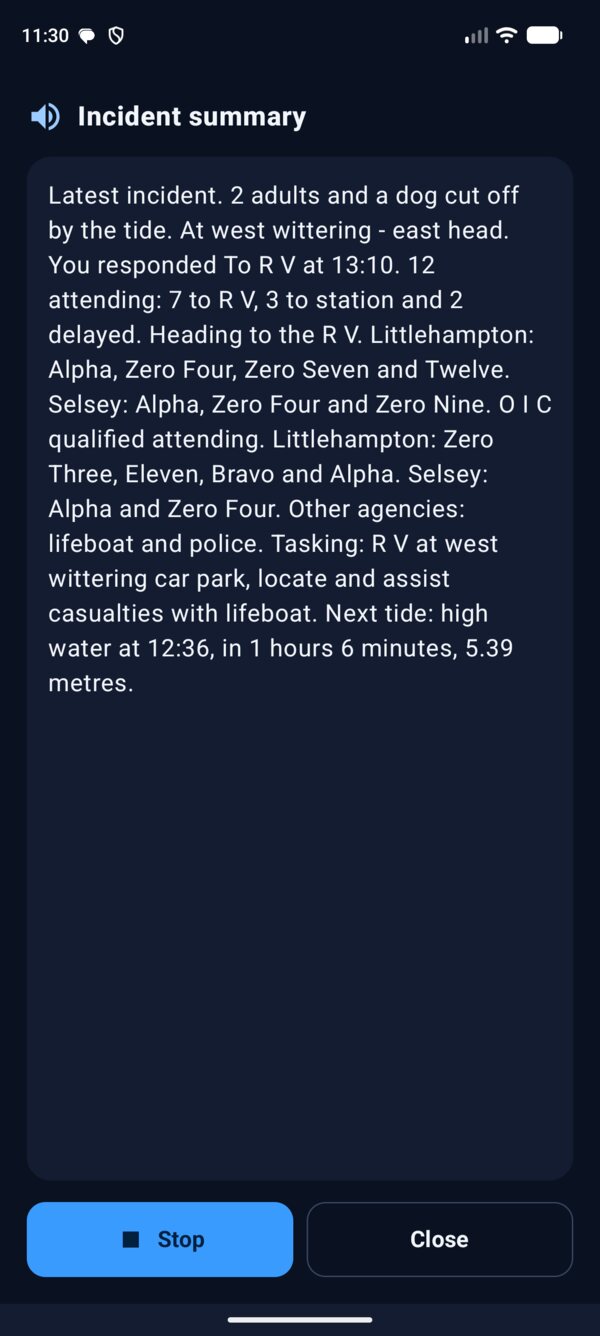
The phone reads what's happened and where, your response, how many are attending, who's heading to the RV, the OIC-qualified responders, other agencies, the tasking and the next tide.

  • Use those exact words. Google opens apps by their name, so phrases like "give me my incident summary" aren't understood.
  • It works with Google Assistant and Gemini. If the phone is locked, Google may ask you to unlock it first.
  • Callsigns are read the radio way, Alpha, Bravo, Zero Four, and numbers as numbers, so 11 is "Eleven".
  • Anyone you've named on the response board is read by name.
  • The speaker button at the top of a live job does the same. Stop, Read again and Close are at the bottom.
The spoken incident summary screen with the text being read.
Read out loud
Back to contents

10Jobs & write-ups

When a job is stood down it's saved in Jobs as a record: just the facts you need for the write-up. A finished job is never live again; late texts are added to its record.

Write up a job

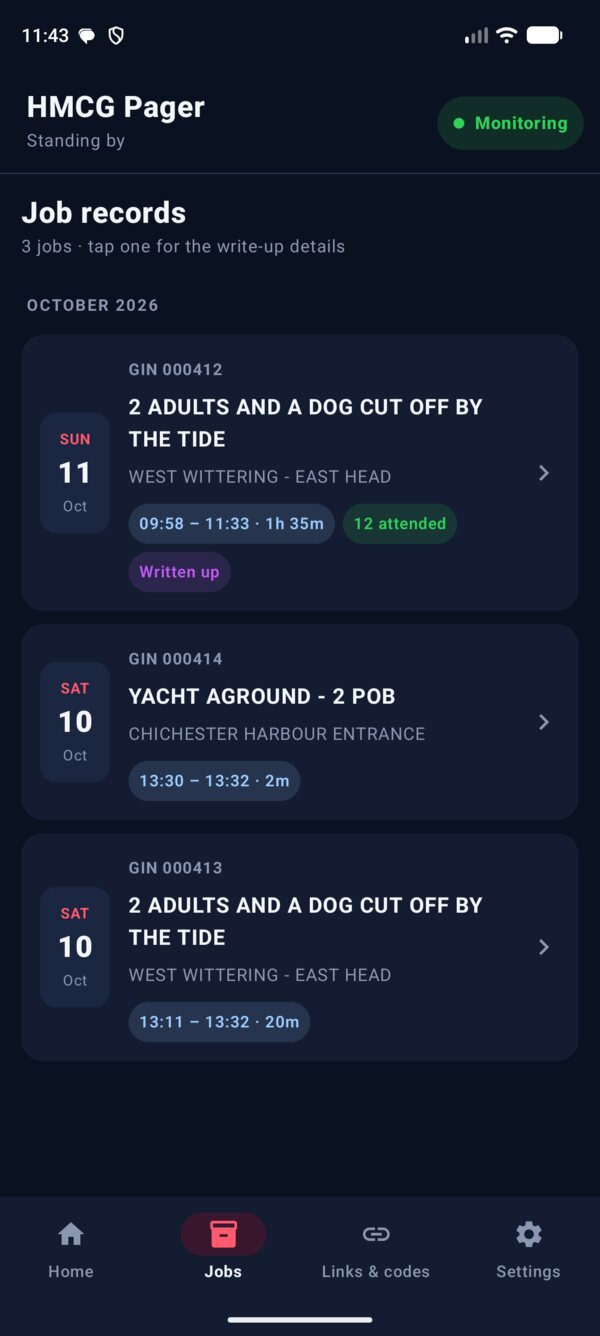
  1. Tap Jobs at the bottom. Jobs are grouped by month, newest first. Each card shows the date, GIN, paged → stood-down times, how long it ran and how many attended.
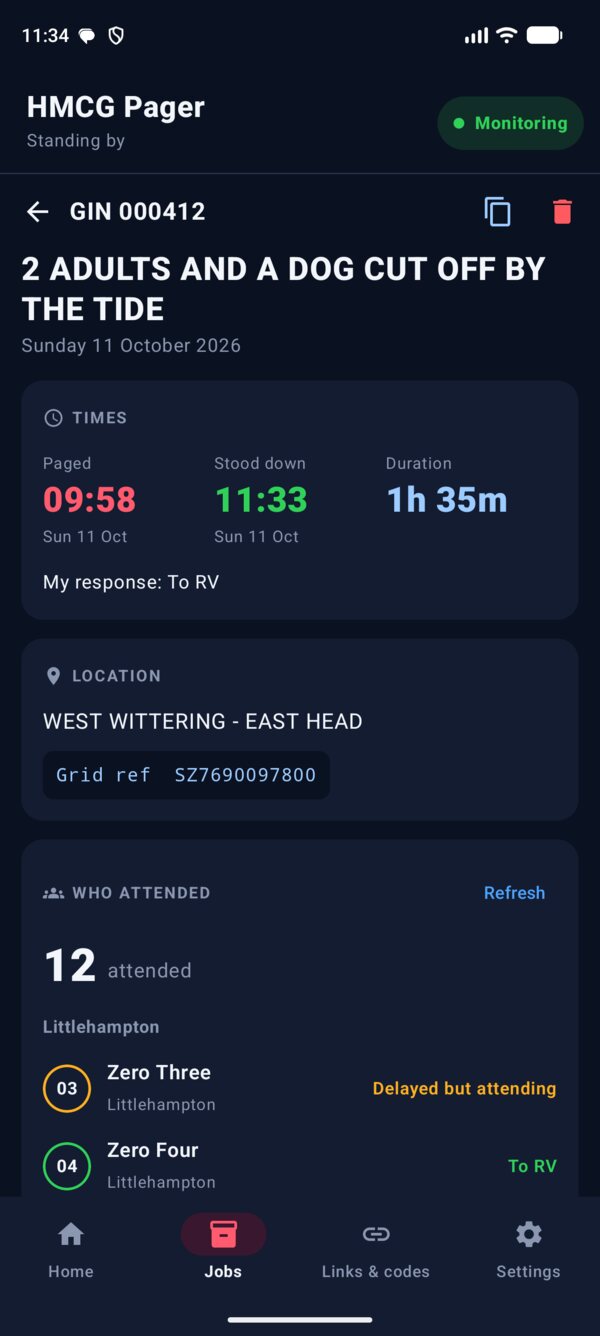
  2. Tap a job. Times shows when you were paged, when you were stood down, the duration and your own response.
  3. Location shows the place and grid reference.
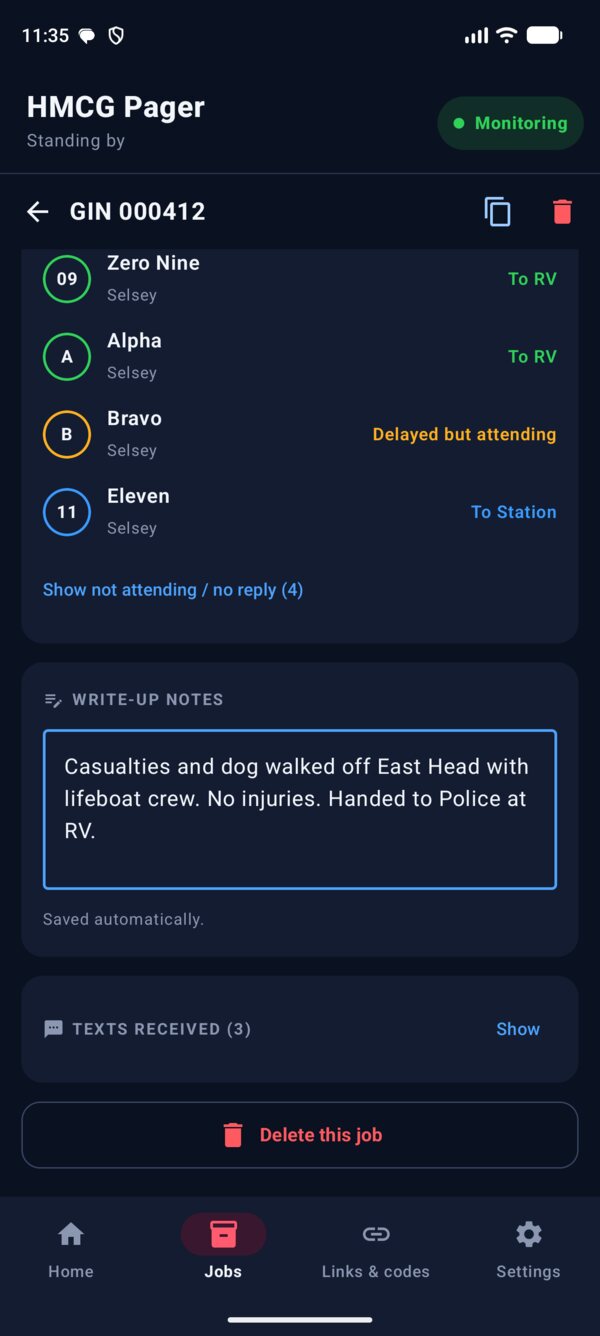
  4. Who attended lists everyone team by team, with their response. Show not attending / no reply lists the rest.
  5. Type in Write-up notes. It saves as you type, and the card then shows Written up.
  6. Tap the copy button (top right) for a ready-made summary to paste into your report.
  7. When the write-up's done, tap Delete this job and confirm.
Attendance missing?Who attended is saved from the response board while the job is live. If it's missing, tap Load from MATS while the summary link still works.
No stand-down?If you closed the job yourself, or a new page closed it, the record says so with the time it was closed.
Job records list.
Job records
A job record with times, location and who attended.
Times and who attended
Write-up notes and Delete this job.
Notes and delete
Back to contents

11Alarm tones

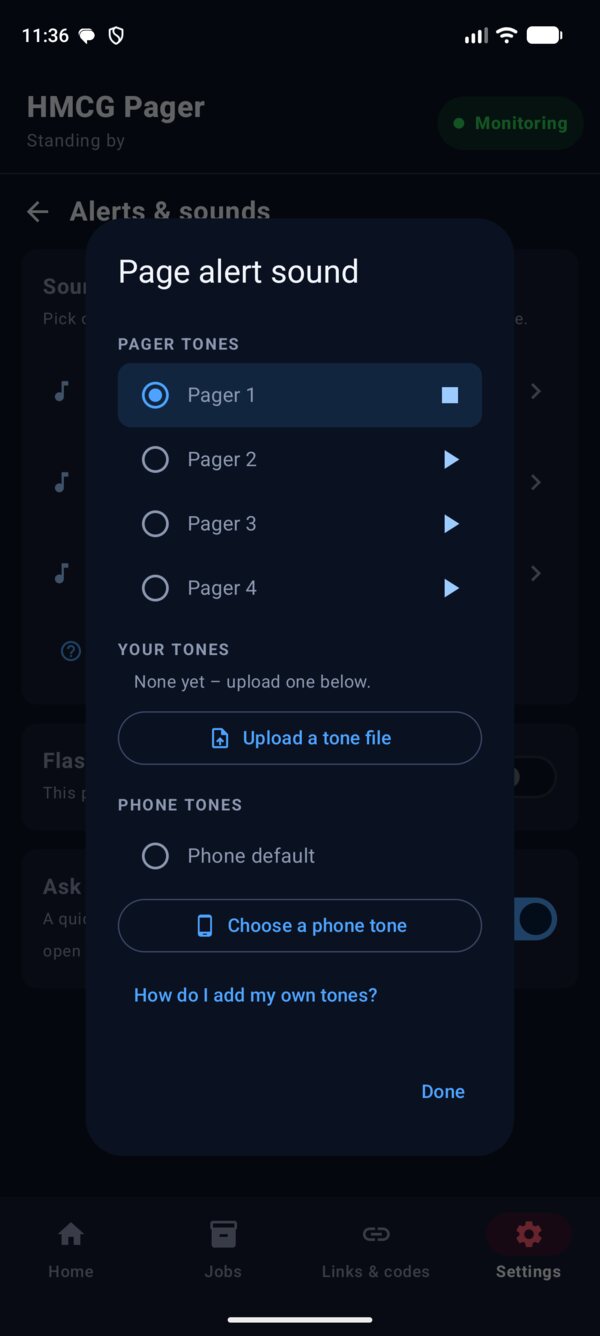
Four Pager tones come with the app. The page alert, incident summary and stand-down can each have their own sound.

Choose a tone

  1. Go to Settings › Alerts & sounds.
  2. Tap Page alert, Incident summary or Stand down.
  3. Tap a tone to select it and hear it. ▶ plays it again, ■ stops it. It's saved straight away.
  4. Tap Done.

Upload your own tone from the phone

  1. Get the sound file onto your phone: save it from an email or WhatsApp, or download it.
  2. In the tone picker, tap Upload a tone file.
  3. Pick the file. Look in Downloads, WhatsApp or Drive.
  4. It's copied into the app and selected. It shows under Your tones from then on.

Copy tones from a computer

  1. Open the app once so it creates its Tones folder.
  2. Plug the phone into the computer with a USB cable. On the phone, tap the USB notification and choose File transfer.
  3. On the computer, open the phone's storage and go to Android/media/com.example.pager/Tones.
  4. Drag your MP3 files into that folder.
  5. In the app, open the tone picker. The files show under Your tones.

Use one of the phone's tones

Tap Choose a phone tone for any ringtone, alarm or notification sound on the phone. Phone default uses whatever the phone's alarm (or notification) sound is set to.

  • MP3 works best. WAV, OGG and M4A also work.
  • Keep it short and loud. A few seconds is plenty: the page alert repeats until you respond.
  • If a tone file is deleted or won't play, the app uses the phone's alarm sound, so you never miss a page.
Alerts and sounds settings page with the three sounds, torch flash and the availability question.
Alerts & sounds
Tone picker with Pager tones, Your tones, Upload and phone tones.
The tone picker
Back to contents

12what3words

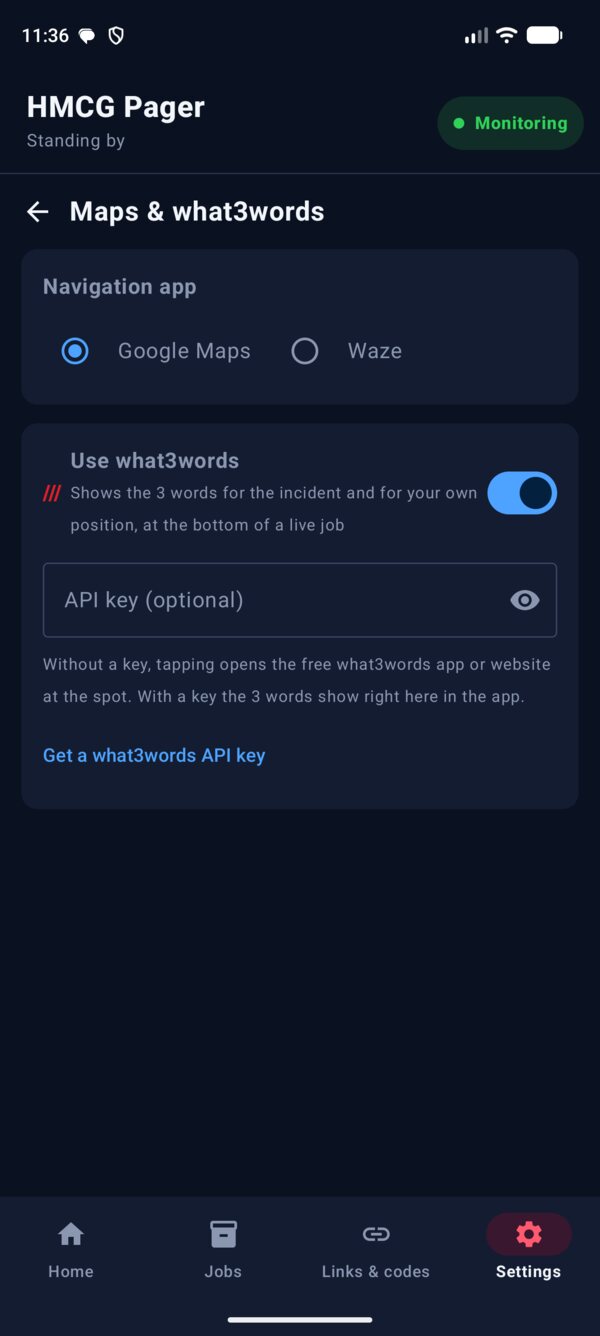
  1. Go to Settings › Maps & what3words and turn on Use what3words. When it's off, it's hidden everywhere.
  2. Optional: paste a what3words API key (tap Get a what3words API key). With a key the 3 words show in the app with a copy button. Without one, tapping opens the free what3words app or website at the spot.
  3. On a live job, scroll to the bottom. Incident / RV gives the incident's 3 words.
  4. Tap Find my what3words for your own position. The first time, Android asks to use your location. It shows how accurate the fix is, for example ±5 m. Update my position takes a new fix.

Find my what3words is also on Home when no job is live, and at the bottom of the response board.

Maps and what3words settings page.
Turn it on
what3words panel at the bottom of the live job with My position.
Incident and my position
Back to contents

13Forwarding & WhatsApp

Forward pages to a second phone

  1. Go to Settings › Forwarding & WhatsApp.
  2. Tap + next to Forward Contacts and add the number.

Every attendance request is texted on to those numbers. Summaries (which carry your personal MATS link) and stand-downs aren't forwarded.

Share on WhatsApp

  • On a live job, tap WhatsApp. It opens with your response and today's tides written. Pick your team group and tap Send.
  • Open WhatsApp after I respond does this automatically. It's off unless you turn it on.
  • Include today's tide times adds the tides to the message.

Navigation app

Choose Google Maps or Waze for Navigate in Settings › Maps & what3words.

Back to contents

15Settings at a glance

Each row shows how it's set, so you can check your setup without opening anything.

RowWhat's in it
Ready for pagesThe monitoring switch, the checklist with Fix buttons, and the double-alert tip.
Alerts & soundsPage alert, summary and stand-down tones, torch flash, and the availability question.
HMCG numbers & tidesThe paging number, other numbers to accept, and your tide station.
Forwarding & WhatsAppForward contacts and WhatsApp sharing.
Maps & what3wordsGoogle Maps or Waze, what3words on/off and API key.
Links, codes & backupHelpful links, gate codes, import and export.
Help & how-toThis guide, in the app.
Run setup againThe step-by-step setup.
Test toolsPractise with a fake page, summary and stand-down. Responses to the test job are never texted to HMCG.
The Settings menu.
Settings menu
Back to contents

16A&T codes

The app texts these for you. Only the digit is sent.

CodeMeaning
1To RV
2To station
3Delayed but attending
4On scene
5Not attendingA&T also sets you unavailable.
8Available
9Unavailable
0SOSHold three seconds on the live job.
Back to contents

17If something isn't right

A page didn't ring

Open Settings. If the banner isn't green, tap it and fix anything orange. Make sure SMS monitoring is on. Check Do Not Disturb access and battery are allowed.

Pages beep twice

Your normal Messages app beeps for HMCG texts too. Settings › Ready for pages › Open Messages notification settings, and turn notifications off for the HMCG conversations (07908 680502, 07860 042661 and "HMCG").

The SMS permission pop-up never appears

Android blocks SMS for apps not from the Play Store. Follow the steps in Getting set up: App info › ⋮ › Allow restricted settings › Permissions › SMS › Allow.

"Hey Google" doesn't read the summary

Say "Hey Google, open Incident Summary" exactly. Unlock the phone if Google asks.

My own tone doesn't play

Try an MP3. If the file was moved or deleted, the app plays the phone's alarm instead. Upload it again from the tone picker.

Weather or tidal flow won't load

Both need signal. Tidal flow uses the last download if there's no signal; tap refresh when you have signal again. Weather retries every ten minutes.

Who attended is empty on a job record

Open the job and tap Load from MATS. It works while the summary link from the incident summary text still does.

I'm not sure my response went

Check My response on the live job. If A&T doesn't acknowledge it, call the Ops Room as normal.

Back to contents