For Coastguard Rescue Officers
The pager, rebuilt for the call‑out.
HMCG Pager reads your A&T texts and turns them into a full-screen alert, a live job and a spoken briefing. Respond, navigate, see who's coming, check the wind and the tidal flow, and keep a record for the write-up, without opening a single message.
The page
Respond from the lock screen.
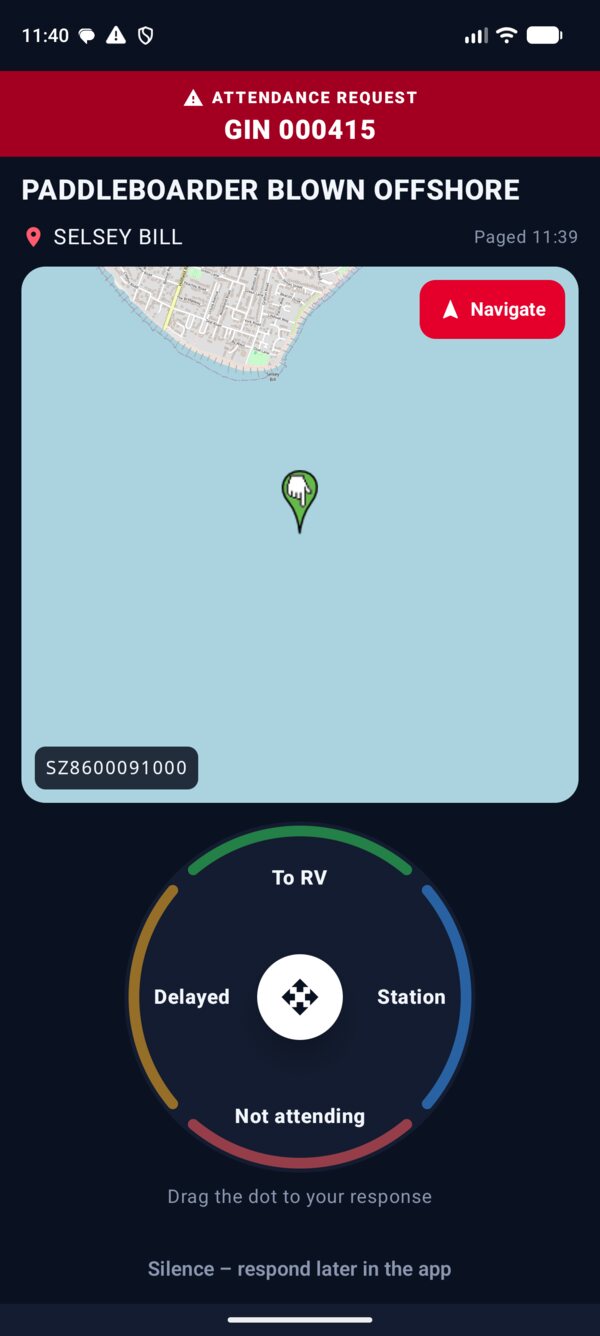
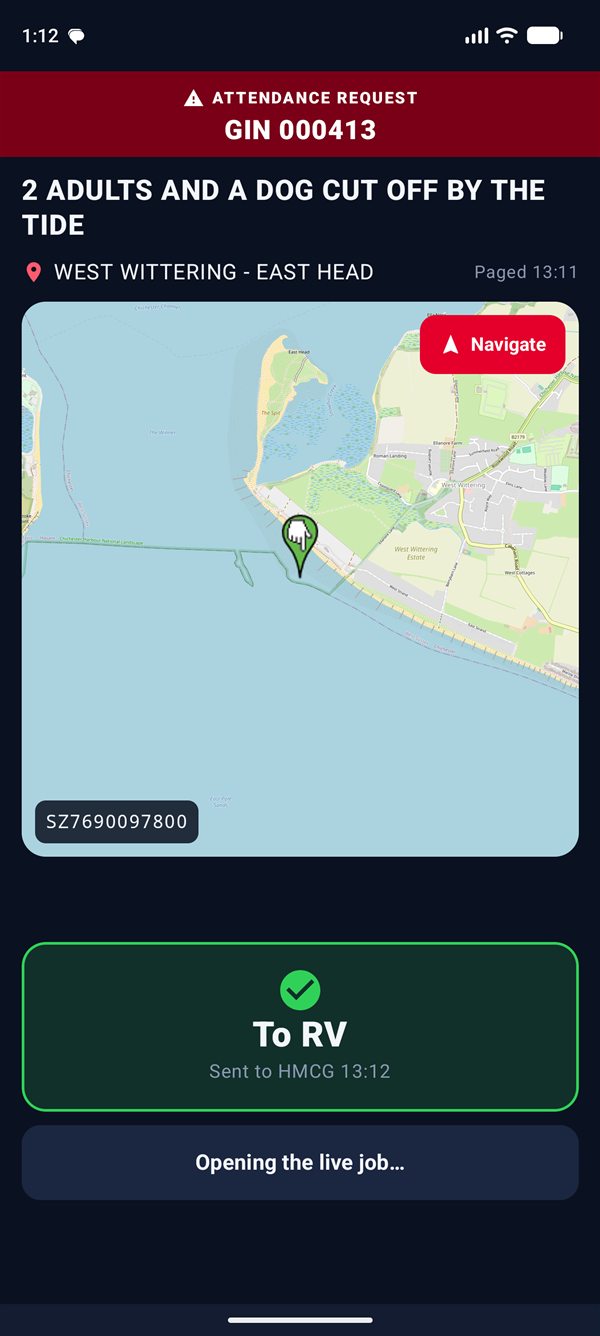
When a page lands, the alarm sounds through Do Not Disturb in one of four built-in Pager tones (or your own), the torch can flash, and the job fills the screen with a map of the RV. Drag the dot to your answer and it's sent. Your phone stays locked.
Just the digitReplies with 1 to 5 to the number that paged you, exactly as the A&T guide asks.
Hard to mis-sendThe dot has to reach the edge to count. Let go early and nothing goes.
Keeps ringingThe alarm loops until you answer or silence it, then opens the live job.
The live job
Know who's coming.
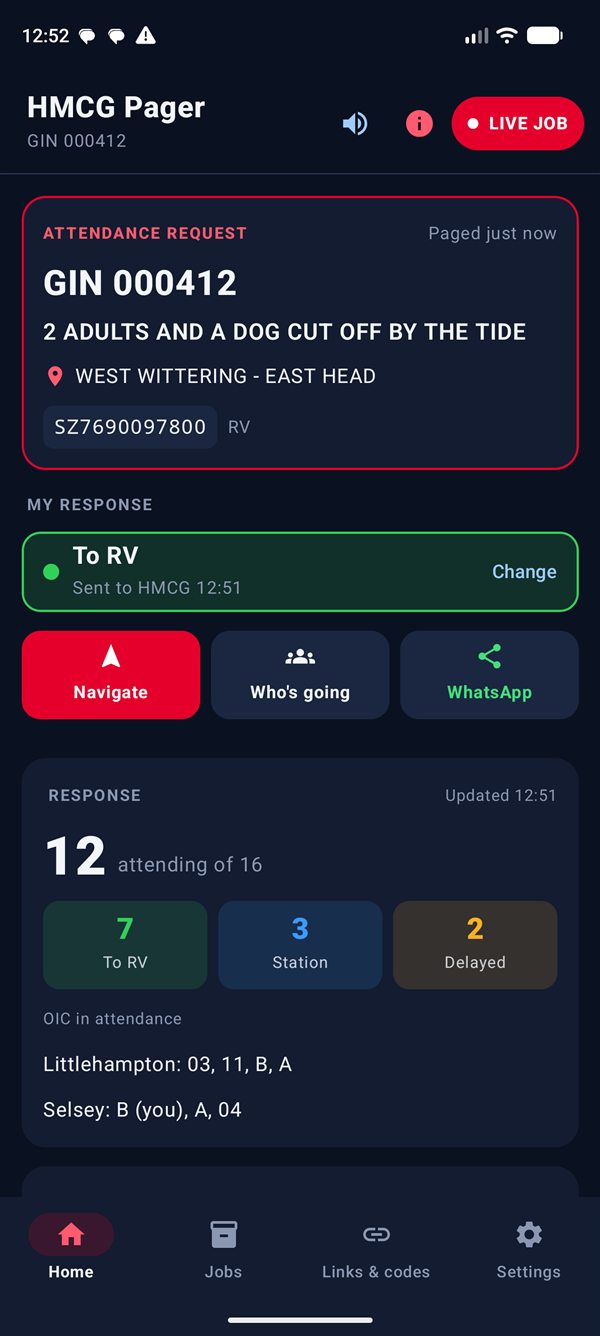
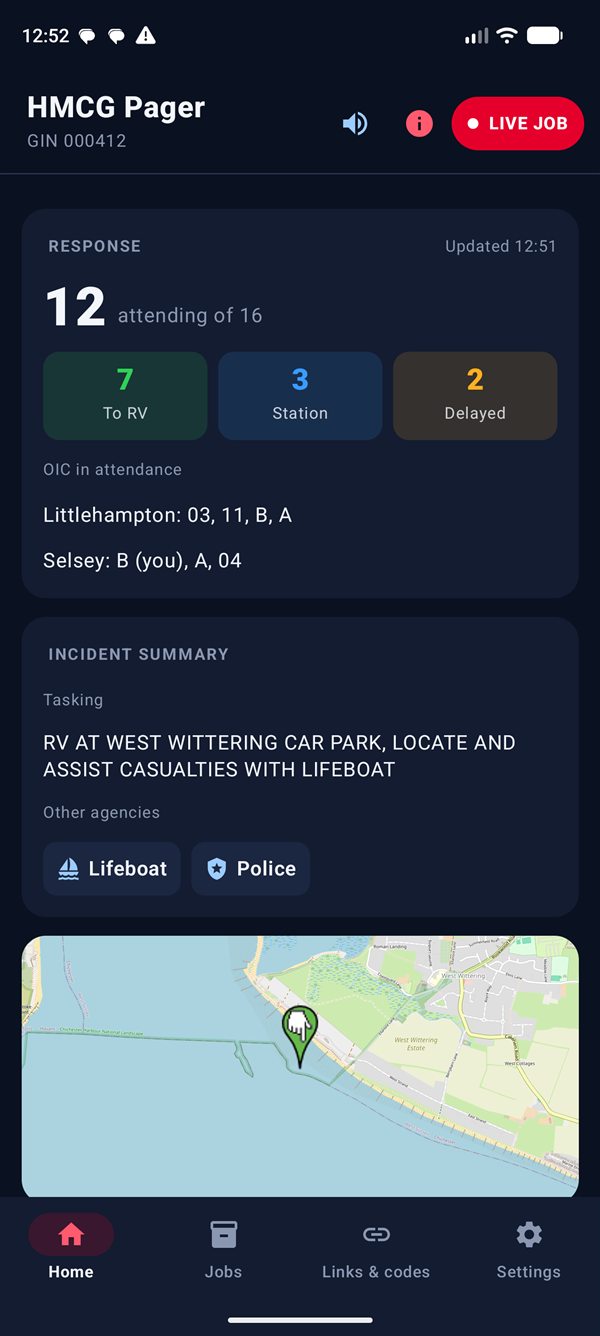
When the incident summary arrives, the job fills in with the tasking, the other agencies on their way and the response from your team.
Response, at a glance.
How many are attending, how many are going to the RV or the station, and which OIC-qualified officers are on their way, team by team. Refreshed every two minutes.
- Other agencies from the summary, such as Lifeboat, Police and Ambulance
- The team tasking, word for word
- Your own response, with the time it was sent and a way to change it
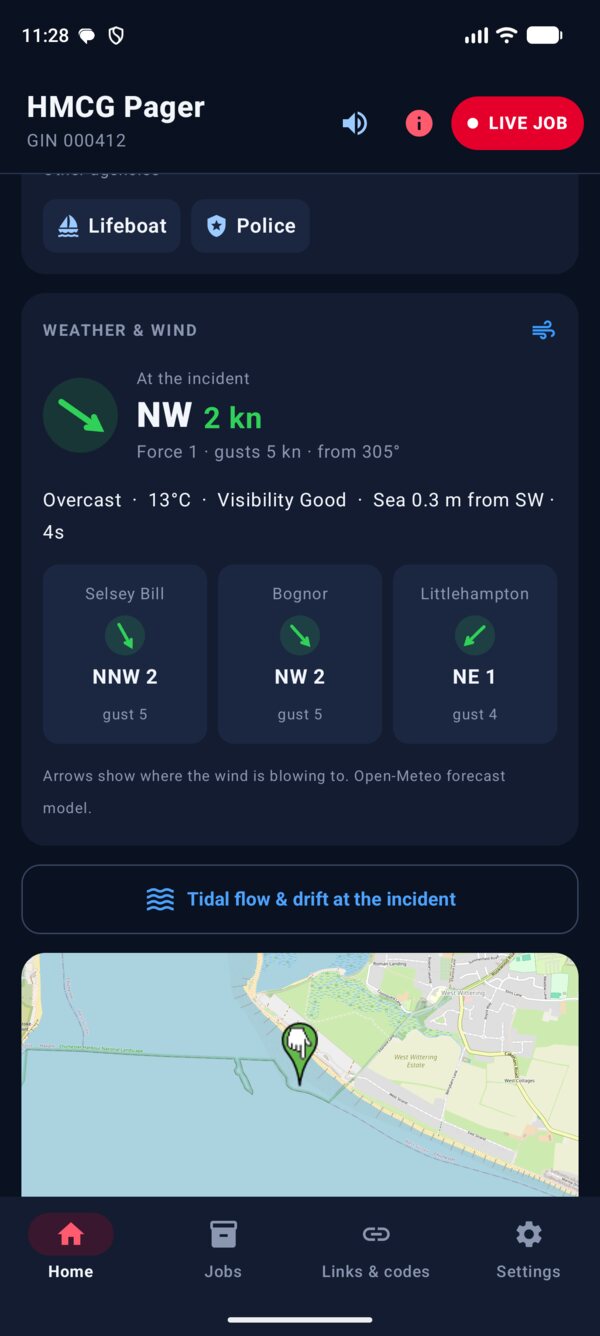
Wind and weather at the scene.
The wind at the incident in big type: where it's coming from, its speed in knots and the Beaufort force, with an arrow showing where it's blowing to. Gusts, visibility and the sea state sit underneath.
- Selsey Bill, Bognor and Littlehampton side by side, so you can see the patch at a glance
- Colours step up with the wind: green to force 3, then blue, amber and red for a gale
- Refreshes every ten minutes while the job is live
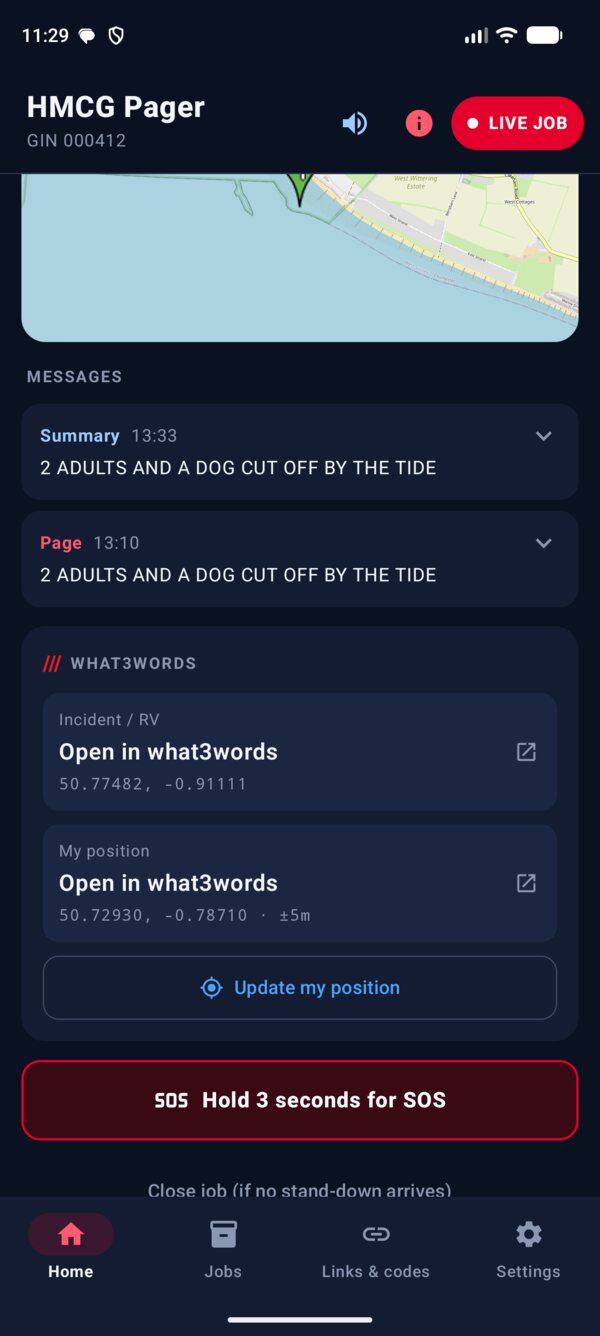
Where you're going.
The RV grid reference becomes a pin on the map. Navigate hands it to Google Maps or Waze, and the next tide sits underneath.
- Every page, summary and update for the job, with times
- what3words for the incident and for your own position, at the bottom when you turn it on
- Hold for three seconds to send SOS, which texts 0 to A&T
- Close the job yourself if a stand-down never arrives
- Only the newest job is live. A new page closes any older one and keeps it in Jobs
Response board
The incident summary, rebuilt.
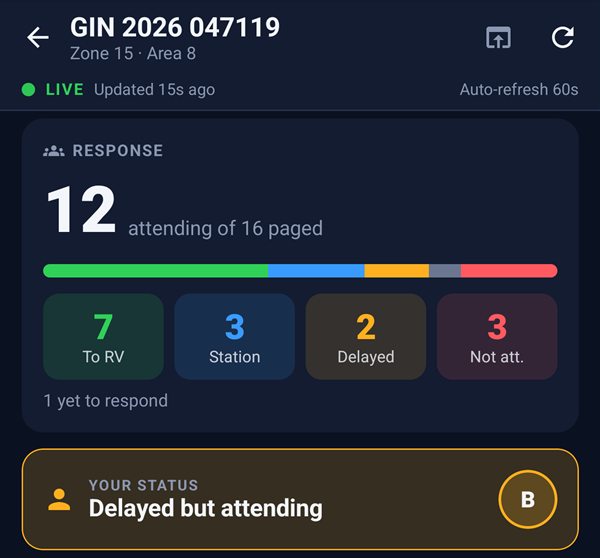
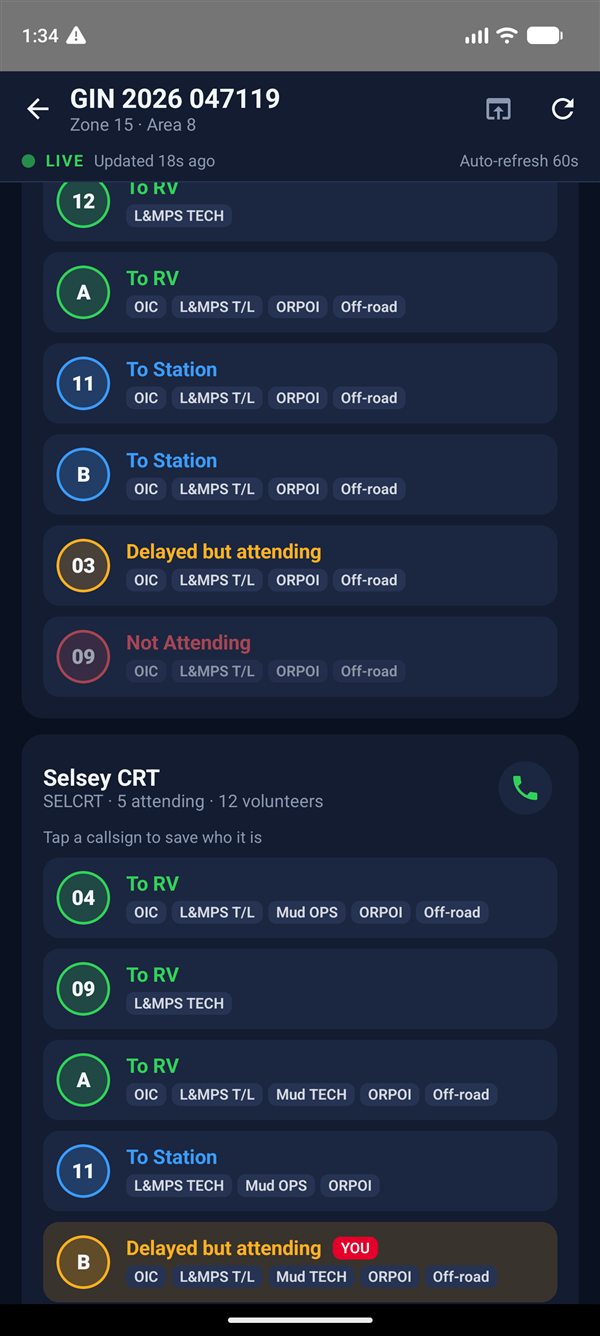
Tap Who's going and the A&T incident summary page opens as a proper phone screen. It reads the page from your own link and refreshes every minute.
The whole picture first.
A total of who's attending, a bar of everyone's response, and your own status at the top. Below that, the RV with its grid reference and coordinates.
- what3words for the RV and your own position at the bottom, when it's turned on
- Navigate, or share the RV as text and a map link
- Open the original page in the browser at any time
Every team, every callsign.
Each team has a card with its vehicle phone one tap away. Everyone shows by callsign, coloured by their response, with the skills they bring.
- Tap a callsign to save who it is. "04" becomes a name, on this and every future job
- You're marked, so you can find yourself at a glance
Tides and tidal flow
See which way the water's going.
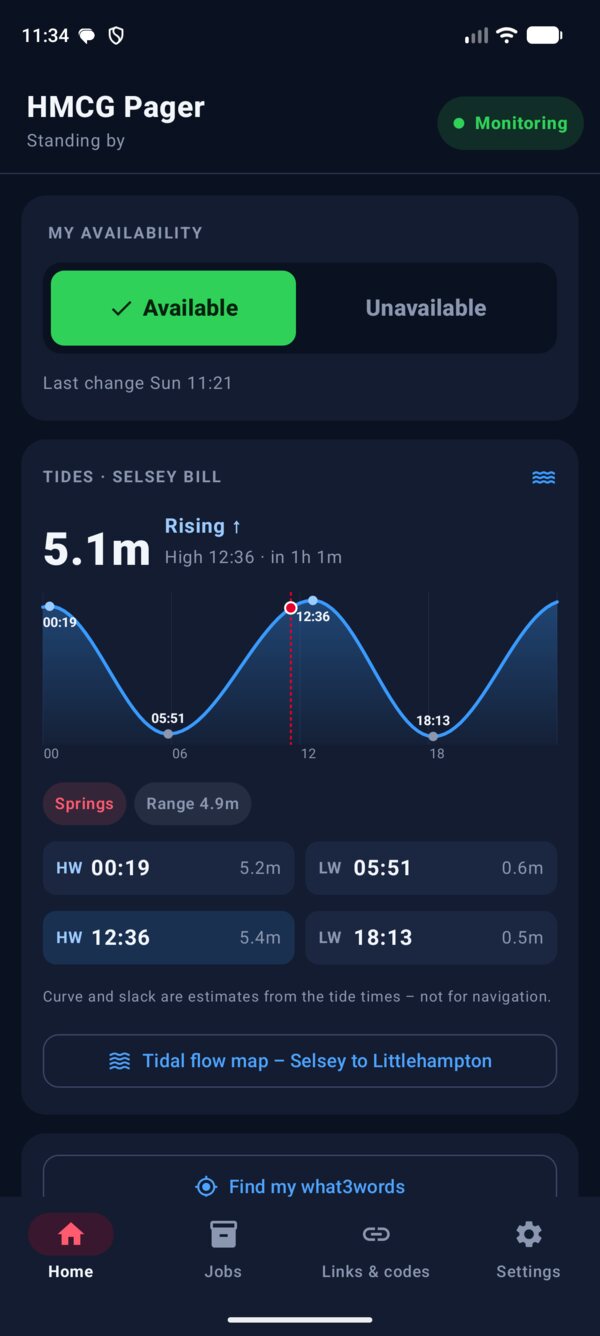
Home shows the day's tide curve with springs or neaps and slack water. Open the tidal flow map and arrows show the stream from Chichester Harbour to Littlehampton: the faster the water, the bigger and redder the arrow.
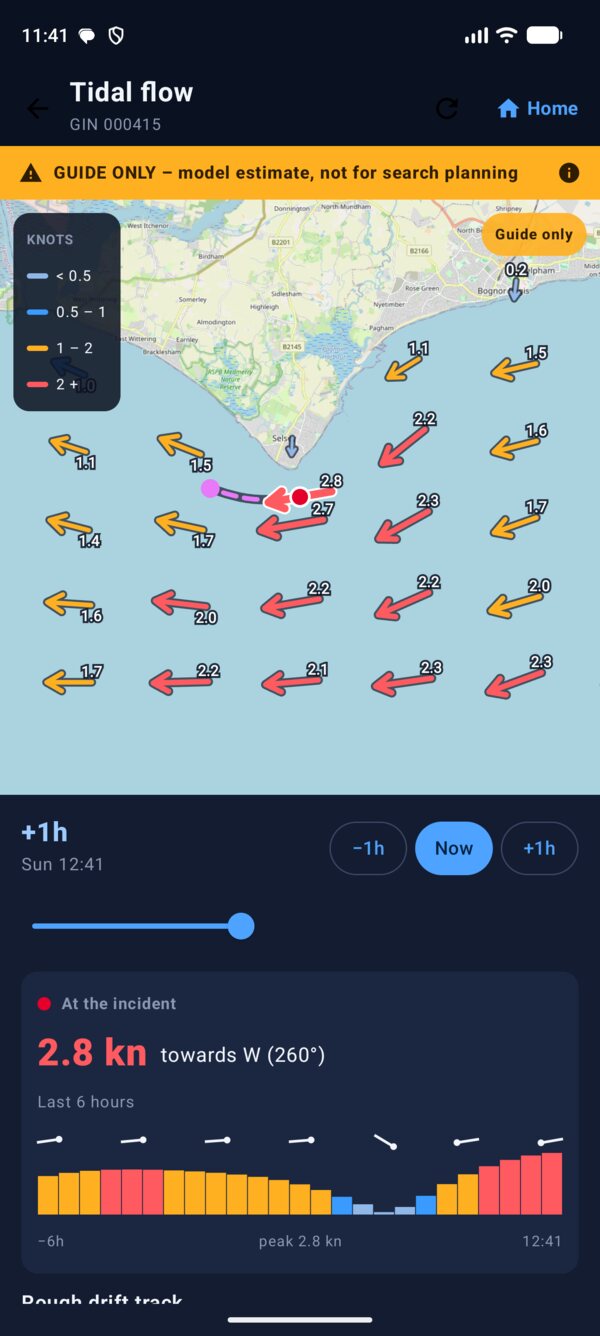
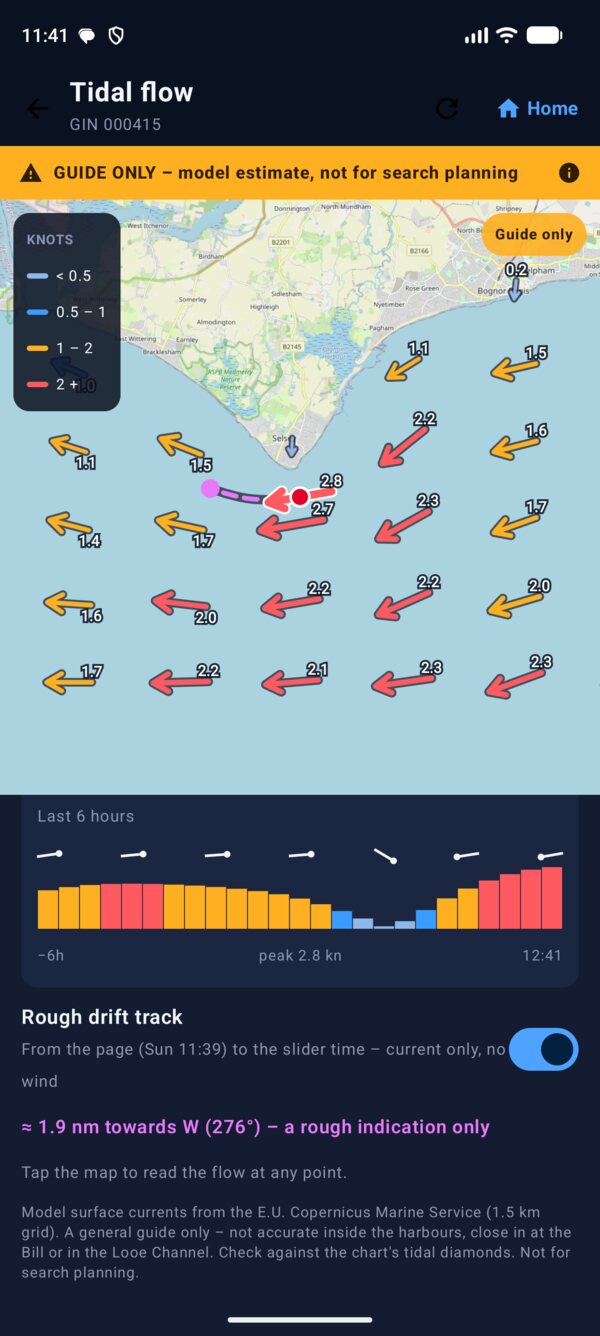
Arrows by speedPale blue under half a knot, then blue, amber, and red over two knots. Zoom in to read the knots on every arrow.
Six hours either waySlide back to the page or forward through the tide. Tap anywhere on the sea to read the flow there.
Drift since the pageOn a live job, a dashed line shows where the current alone would carry someone, with a dot each hour.
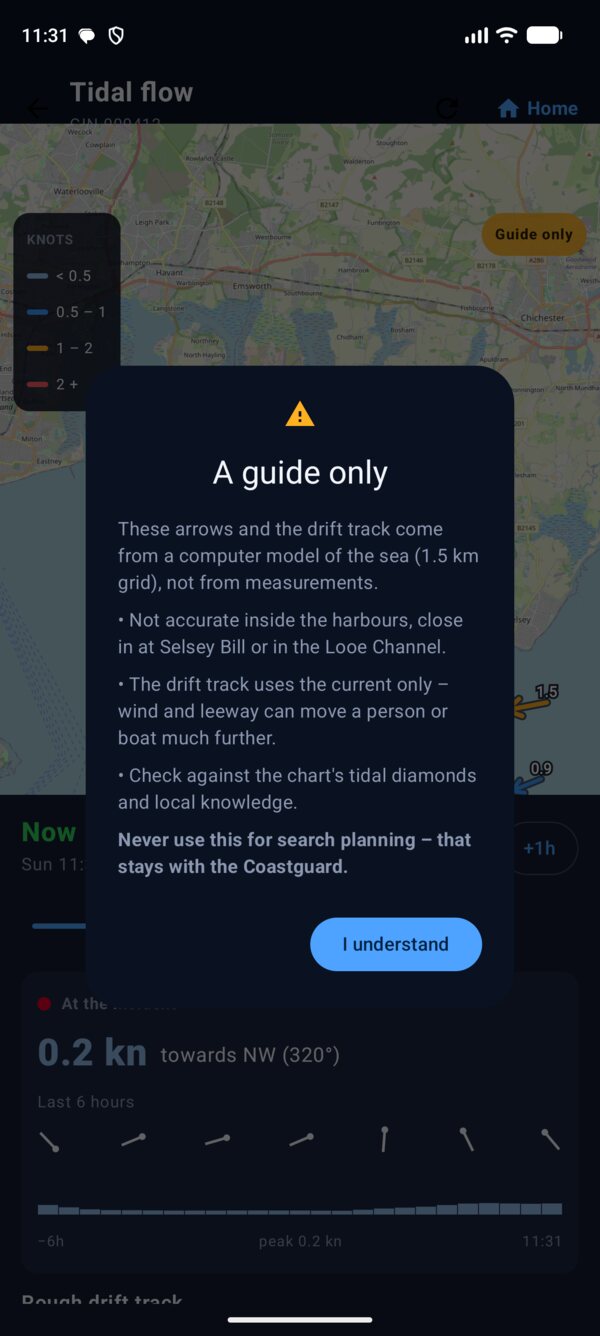
The flow comes from the E.U. Copernicus Marine Service sea model on a 1.5 km grid, not from measurements. It isn't accurate inside the harbours, close in at the Bill or in the Looe Channel, and the drift ignores wind. The app says so every time you open the map. Check it against the chart's tidal diamonds, and never use it for search planning.
Hands free
Ask for the briefing.
"Hey Google, open Incident Summary"The phone reads it out: "Latest incident. Two adults and a dog cut off by the tide. 12 attending. O I C qualified attending. Littlehampton: Zero Three, Eleven, Bravo and Alpha. Other agencies: lifeboat and police. Next tide: high water at 12:36, in 1 hour 6 minutes."
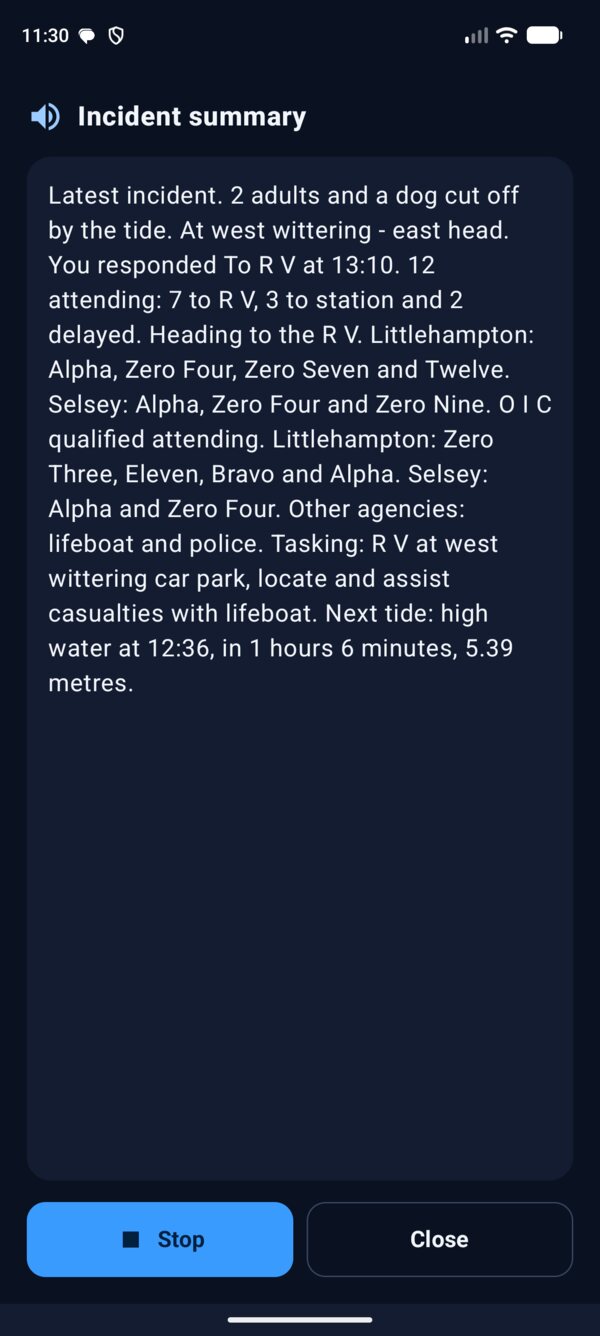
Say "open Incident Summary" exactly; Google opens apps by name. Callsigns are read the radio way: Alpha, Bravo, Zero Four, and numbers as numbers, so 11 is "Eleven". Anyone you've named is read by name. The speaker button on a live job does the same.
Sharing
Tell the people who need to know.
Pass your response on, forward pages to a second phone, and give an exact spot with what3words.
Your response and the tides.
One tap opens WhatsApp with the message written. Pick your team group and send. It can open automatically after you respond, if you want it to.
Forward contacts
Pages to a second phone.
Add numbers in Settings and every attendance request is texted on to them. Summaries carry your personal MATS link, so they're never forwarded. Stand-downs aren't either.
what3words
Three words for the RV, and for you.
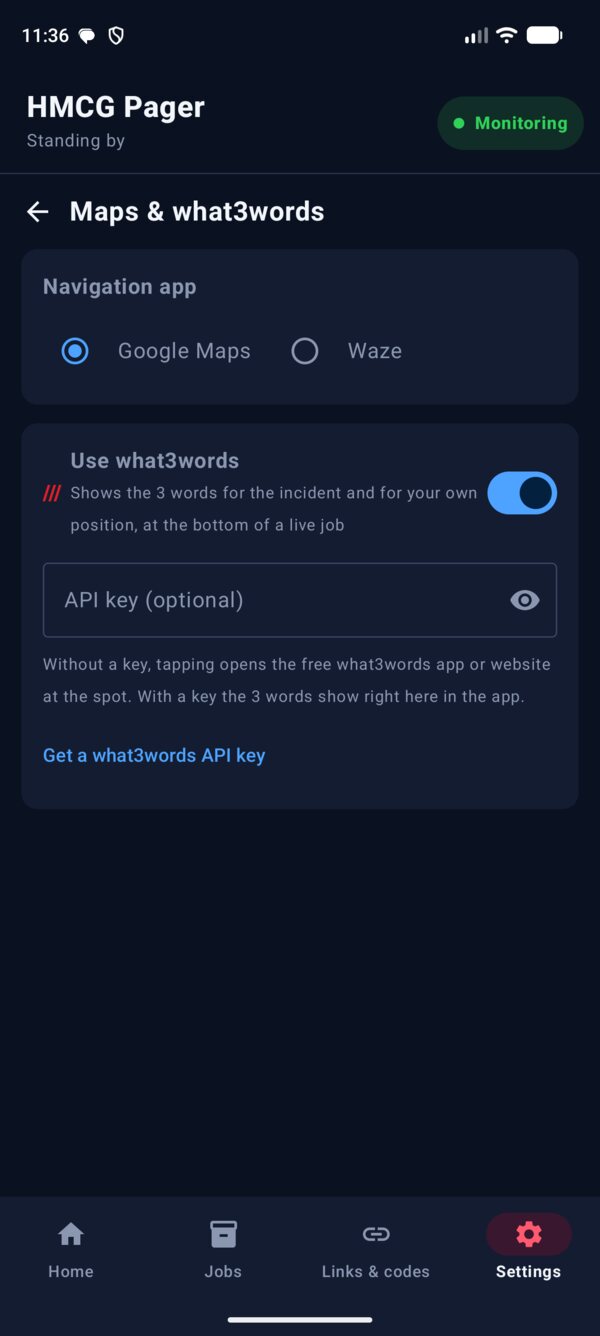
Turn it on in Settings and the 3 words for the incident sit at the bottom of the live job. Find my what3words gives your own position too. Without a key it opens the free what3words app or website; add your own key and the words show right in the app, ready to copy.
Set it how you work.
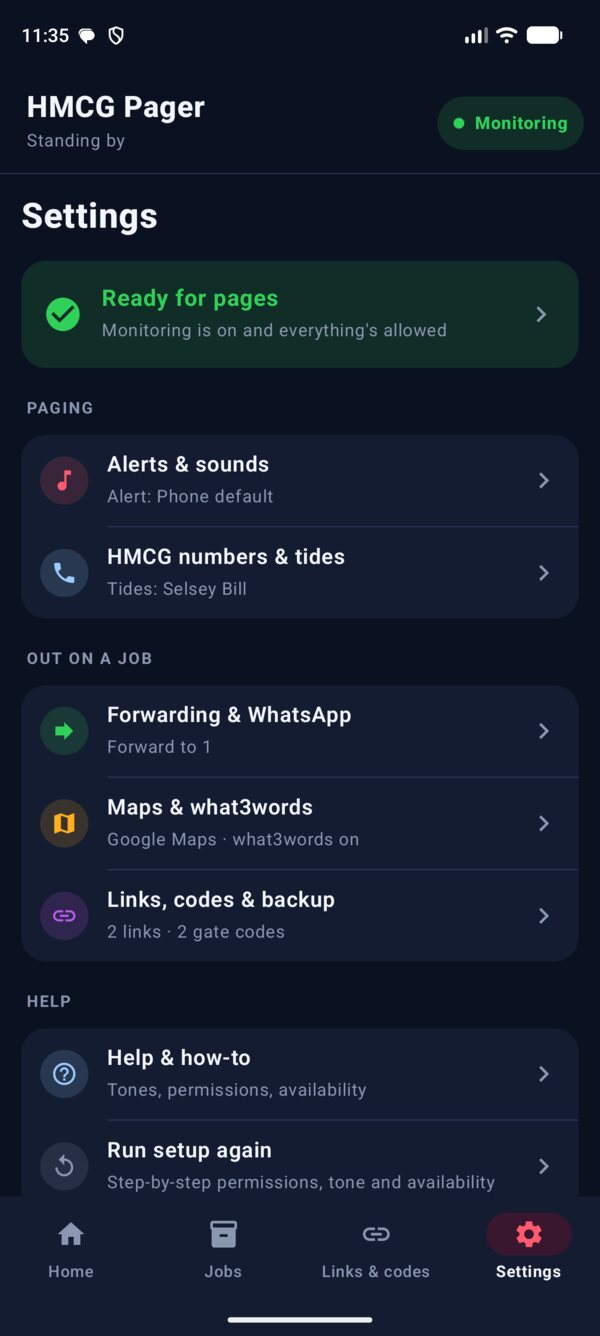
Settings is a short menu. Each row says how it's set, such as "Google Maps · what3words on", and opens its own page.
- Forwarding & WhatsApp: second-phone numbers, and open WhatsApp after you respond
- Maps & what3words: Google Maps or Waze, what3words on or off, and your API key
- When what3words is off, it's hidden everywhere in the app
In your pocket
Links, codes and every job.
The things you look up on a shout, kept in one place.
Links & codes.
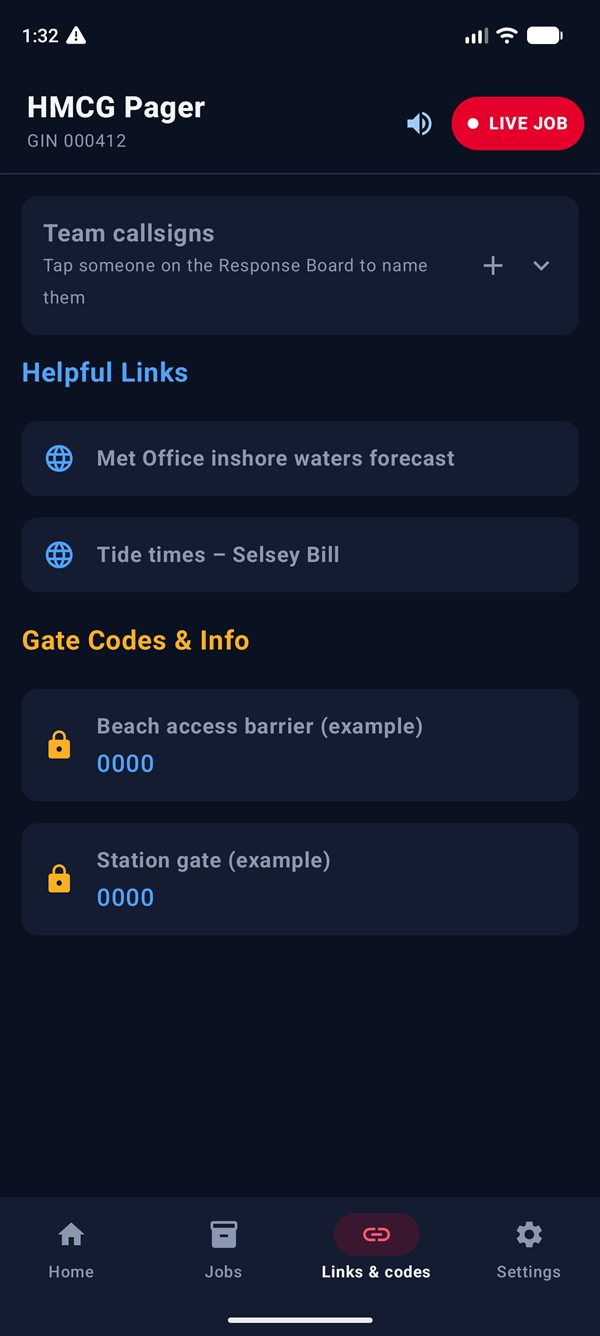
Gate and barrier codes, useful websites and documents, and the names behind your team's callsigns.
- Helpful links open web pages or documents saved on the phone
- Gate codes & info, shown large and easy to read
- Team callsigns: add names by hand, or by tapping someone on the board
- Back up and restore your links and codes as a file, or share them with the team
Every job, kept for the write-up.
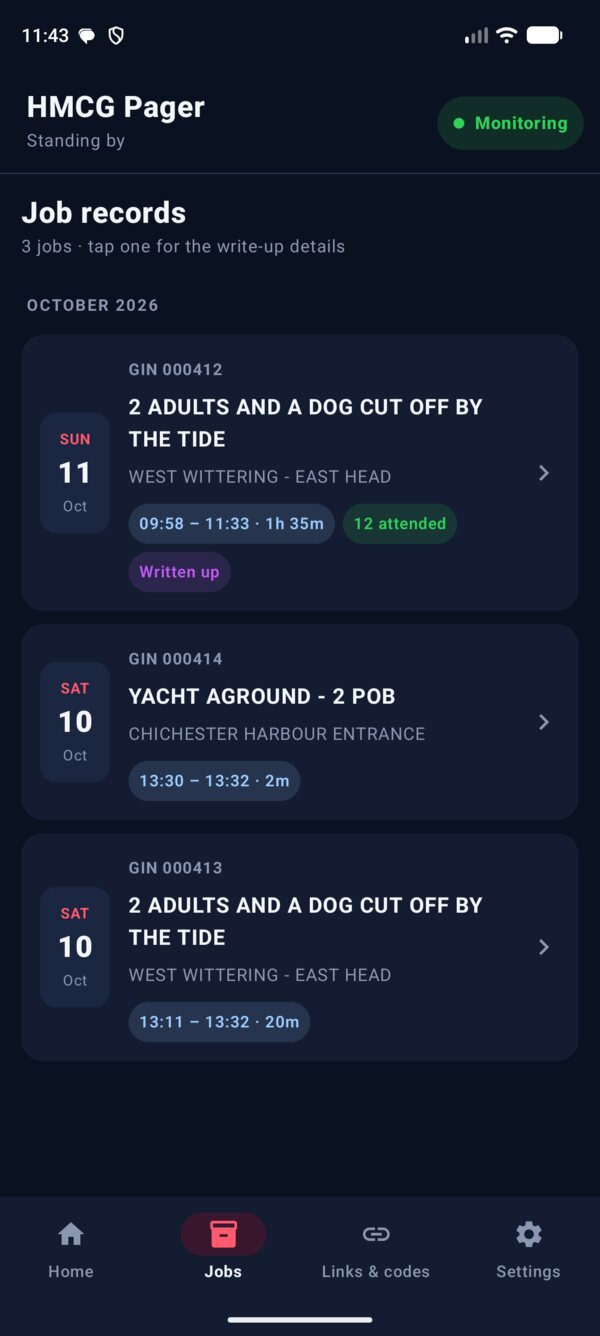
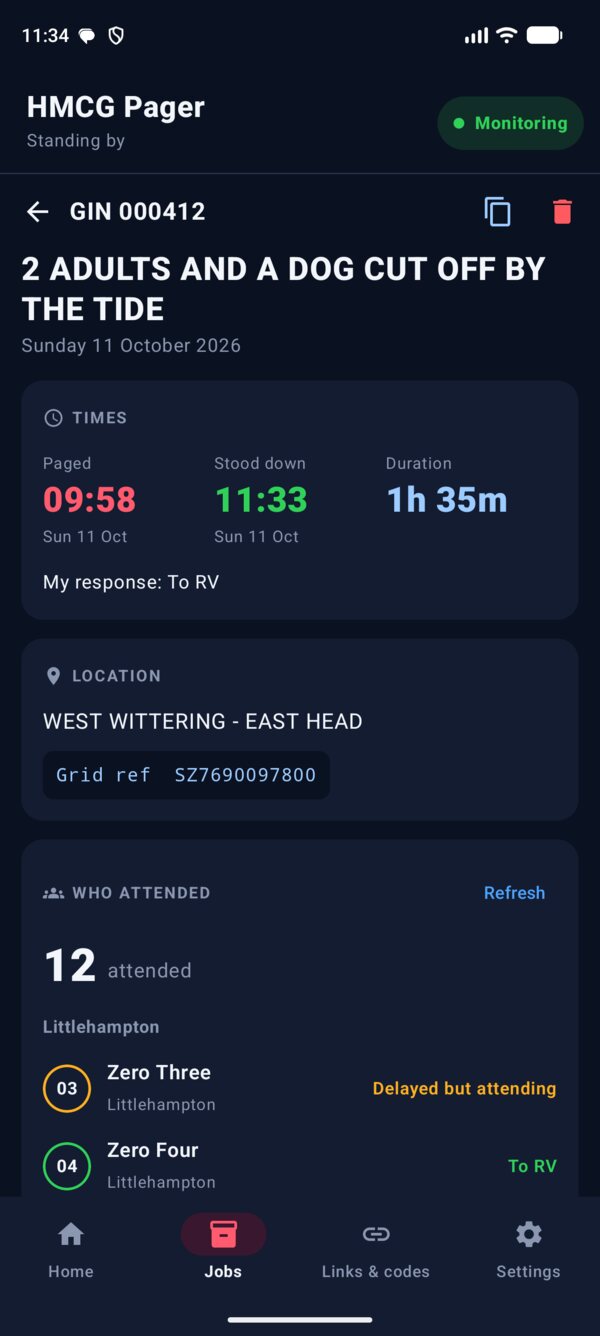
When the stand-down arrives the job is saved in Jobs, in the app's own database. Each card shows the date, GIN, paged and stood-down times, how long it ran and how many attended.
- Grouped by month, newest first
- "Written up" shows once you've added notes
- A job with no stand-down says so, with the time it was closed
Times, who attended, your notes.
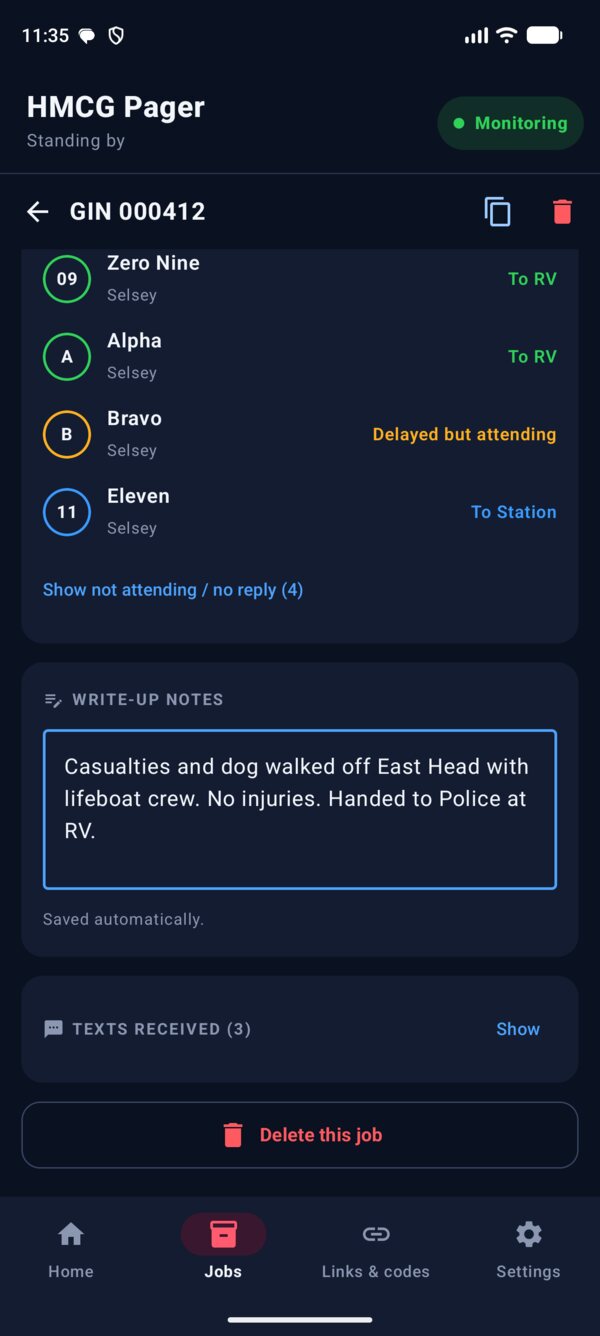
Open a job for what the report needs: when you were paged, when you were stood down, your own response, the location and grid reference, and everyone who attended, team by team.
- Write-up notes that save as you type
- One tap copies a ready-made summary to paste into the report
- Load attendance from MATS if it wasn't saved while the job was live
- Delete the job once the write-up is done
Just a record.
A finished job is never live again. There's no WhatsApp button and no what3words, only the facts of the job. Late texts for it are added to the record instead of starting a new job.
How a job runs
From page to stand‑down.
A&T codes
The codes it sends for you.
Set up once
Ready for pages.
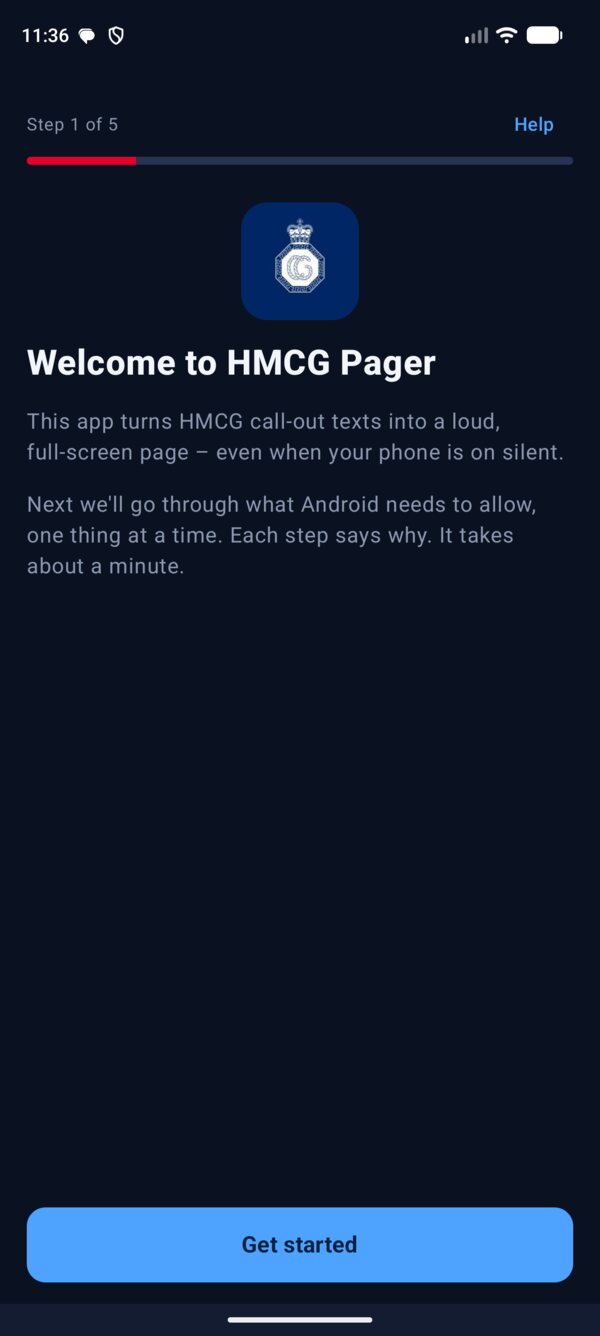
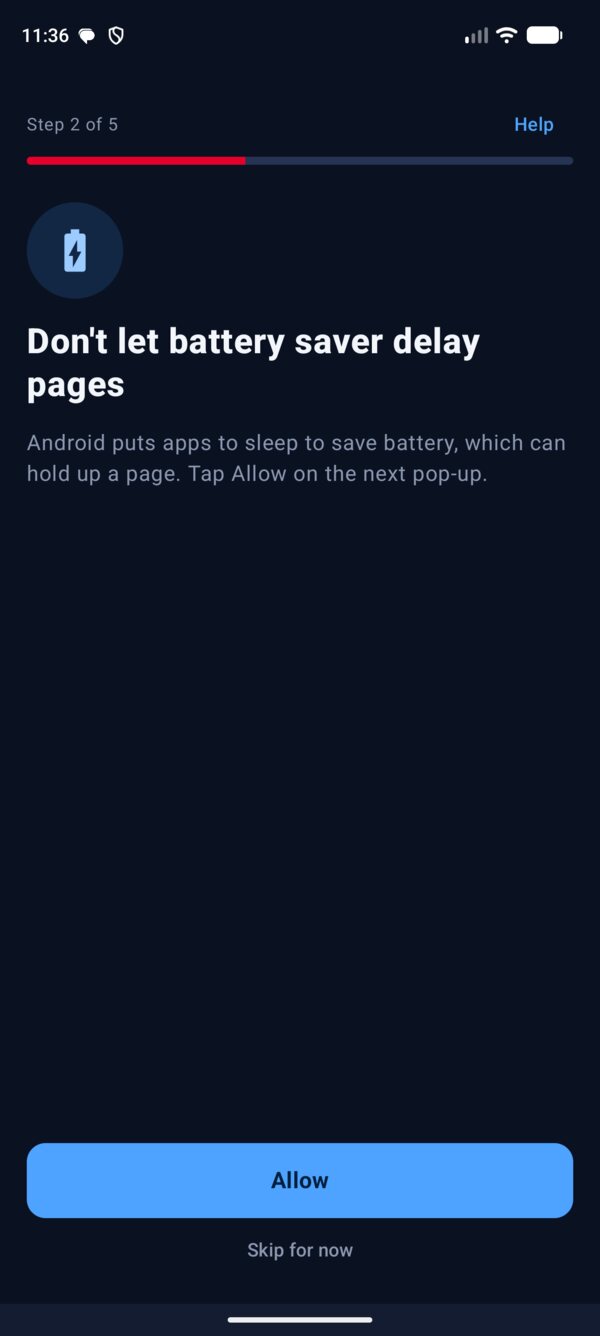
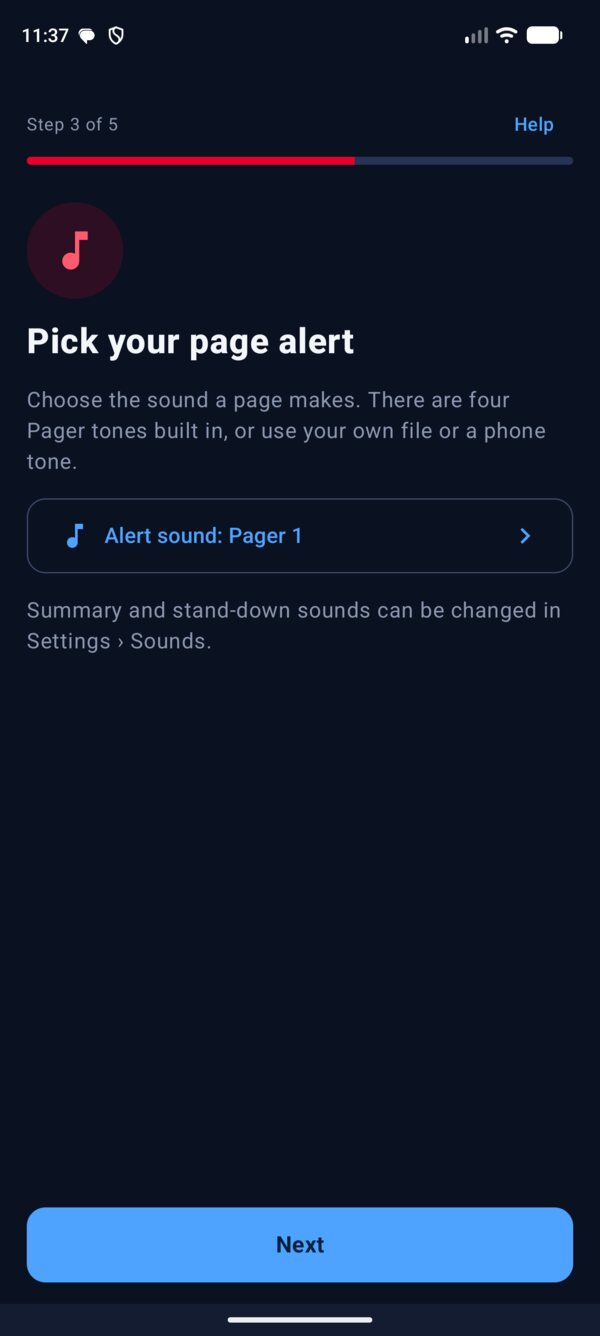
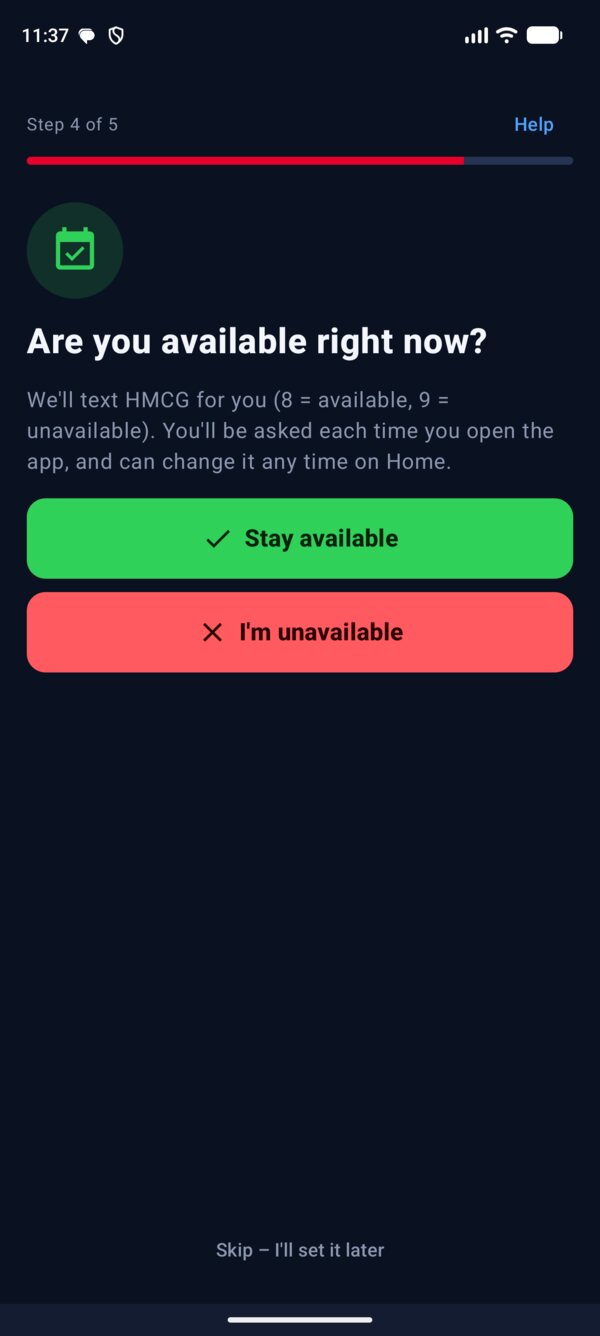
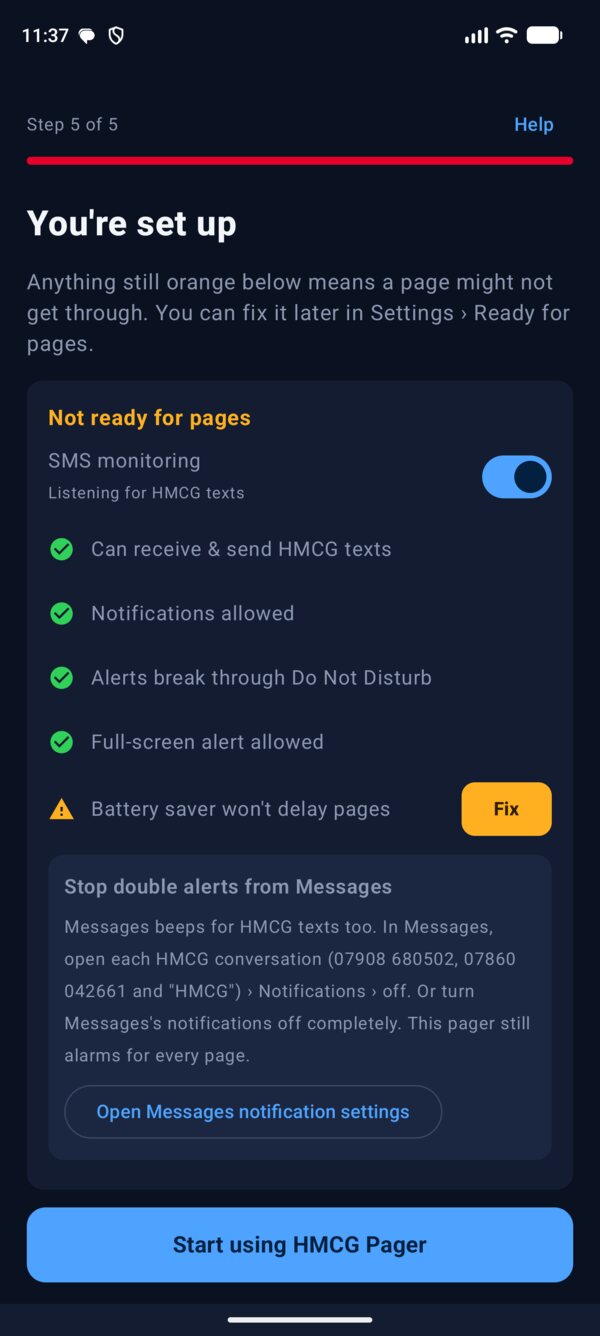
The first time you open it, setup goes through one thing at a time: what Android needs to allow and why, your page alert tone, and whether you're available. Each step ticks itself off when you come back.
Asked when you open it.
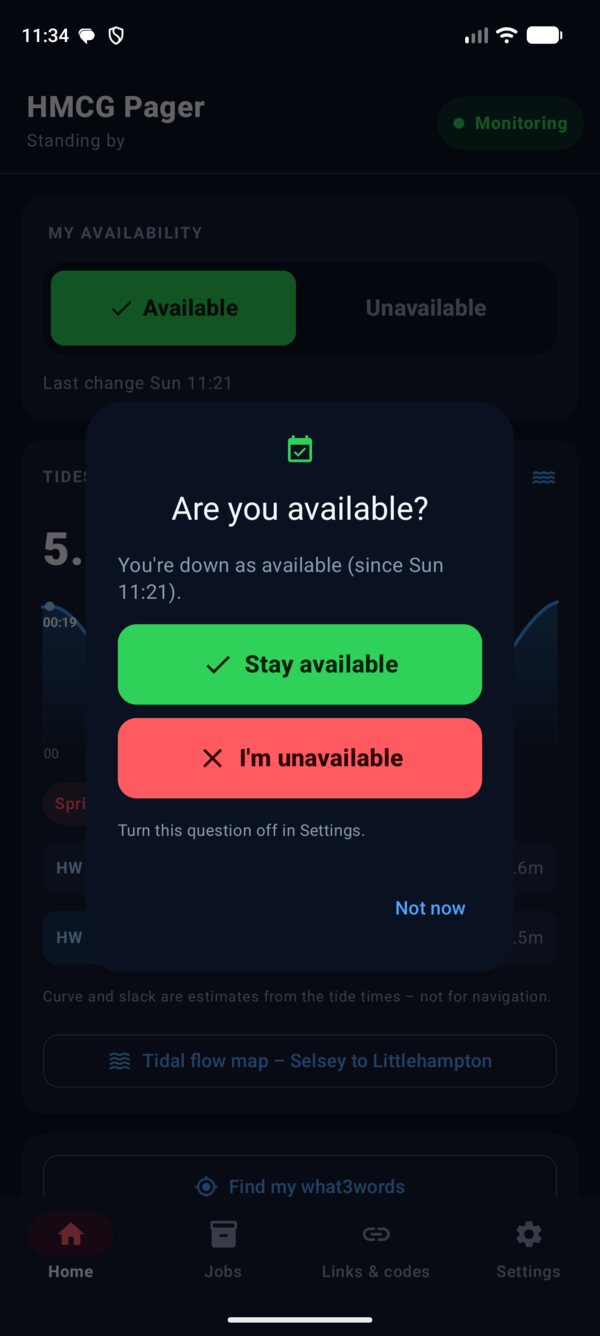
Each time you open the app it asks "Are you available?" and shows what you're down as. Tap to text HMCG 8 or 9. Choosing the one you're already on just closes it, so no extra text is sent.
- Not asked while a job is live
- Turn the question off in Settings › Alerts & sounds
- Clear steps for Android's restricted SMS setting on Android 13 and later
- Run setup again any time from Settings
Your tones, your area.
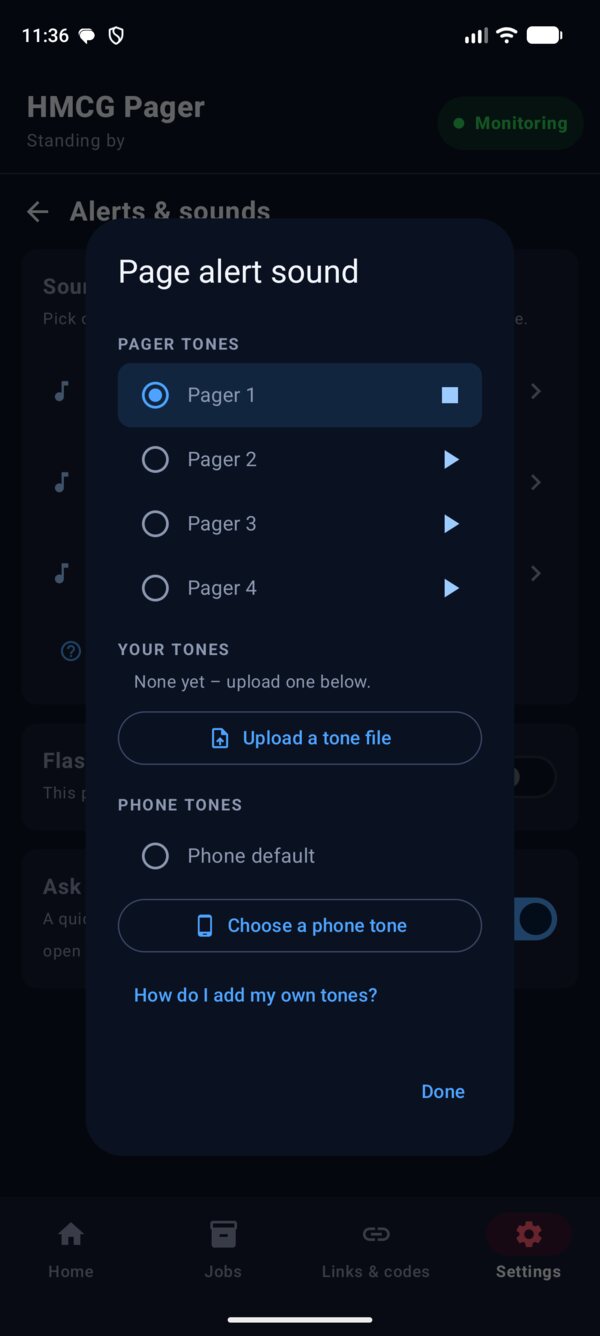
Four Pager tones come with the app. Tap one to hear it, or upload your own file, copy tones from a computer, or use any of the phone's tones. Page alert, summary and stand-down can each have their own.
- If a tone file goes missing, the phone's alarm plays instead, so a page is never silent
- A&T numbers from the July 2026 guide, editable for other areas
- Tide times for any station on tidetimes.org.uk
- Flash the torch with page alerts, with a three-second test
Settings, tidied.
A green Ready for pages banner at the top, then short groups: Paging, Out on a job, Help. Each row shows how it's set, so you can check your setup at a glance.
- Help & how-to explains everything, with a contents list
- Test tools tucked away under Advanced
Good to know
Questions.
Does it replace A&T or calling the Ops Room?
No. It reads the same A&T texts and sends the same codes you'd text yourself. If A&T doesn't acknowledge your response, call the Ops Room as normal.
Will a page get through when my phone is on silent?
Yes, once the setup checklist is all green. The alarm plays on the alarm channel and has permission to break through Do Not Disturb.
Why does Android say SMS is a restricted setting?
Android 13 and later blocks SMS access for apps that aren't installed from the Play Store. In App info, tap the three dots at the top right, choose Allow restricted settings, then go to Permissions, SMS and Allow. The setup screen walks you through it.
Where does my information go?
It stays on your phone, including your job records and notes. The app texts A&T, reads the summary page from your own link, and loads maps from OpenStreetMap, tides from tidetimes.org.uk, weather from Open-Meteo and tidal flow from Copernicus Marine. Those services are only sent a position, never who you are. WhatsApp and what3words are only used when you tap them, and your location only when you tap Find my what3words.
Can I trust the tidal flow arrows?
Use them as a guide. They come from a sea model on a 1.5 km grid, so they're fine offshore and along the coast but rough in the Looe Channel and no good inside the harbours. The drift line uses the current only, not the wind. Check against the chart's tidal diamonds, and never use it for search planning.
"Hey Google" didn't read the summary.
Say "Hey Google, open Incident Summary". Google opens apps by name, so other phrases like "give me my incident summary" aren't understood. If the phone is locked, Google may ask you to unlock it first.
How do I add my own alarm tone?
Settings › Alerts & sounds › Page alert › Upload a tone file, then pick an MP3 from Downloads, WhatsApp or Drive. You can also copy files over USB into Android/media/com.example.pager/Tones. The help guide has the steps.
Does it work outside Selsey?
Yes. The map works anywhere in the UK. Grid references work across England, Scotland and Wales. Choose your own tide station and, if your area uses different numbers, add them in Settings.
Is there an iPhone version?
No. Reading incoming texts isn't possible on iPhone, so HMCG Pager is Android only.